

Template Images
You can easily display text, images, and buttons using the ScreenManager. To update the UI, simply give the manager your new data and (optionally) sandwich the update between the manager's beginTransaction() and commit() methods.
Image Fields
| ScreenManager Parameter Name | Description |
|---|---|
| primaryGraphic | The primary image in a template that supports images |
| secondaryGraphic | The second image in a template that supports multiple images |
Showing Images
sdlManager.getScreenManager().beginTransaction();
sdlManager.getScreenManager().setPrimaryGraphic(sdlArtwork);
// Commit the updates and catch any errors
const success = await sdlManager.getScreenManager().commit().catch(function (error) {
    // Handle Error
});
console.log('ScreenManager update complete:', success);
if (success === true) {
    // Update complete
} else {
    // Something went wrong
}
Removing Images
To remove an image from the screen you just need to set the screen manager property to .
sdlManager.getScreenManager().setPrimaryGraphic(null);
Templating Images (RPC v5.0+)
Templated images are tinted by Core so the image is visible regardless of whether your user has set the head unit to day or night mode. For example, if a head unit is in night mode with a dark theme (see Customizing the Template section for more details on how to customize theme colors), then your templated images will be displayed as white. In the day theme, the image will automatically change to black.
Soft buttons, menu icons, and primary / secondary graphics can all be templated. Images that you wish to template must be PNGs with a transparent background and only one color for the icon. Therefore, templating is only useful for things like icons and not for images that must be rendered in a specific color.
Templated Images Example
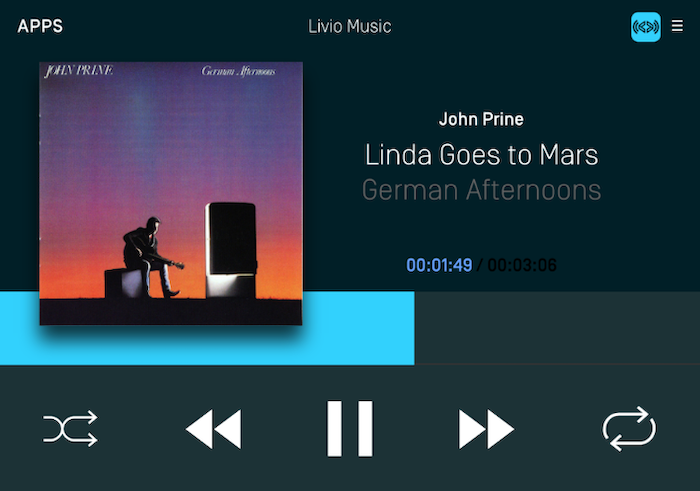
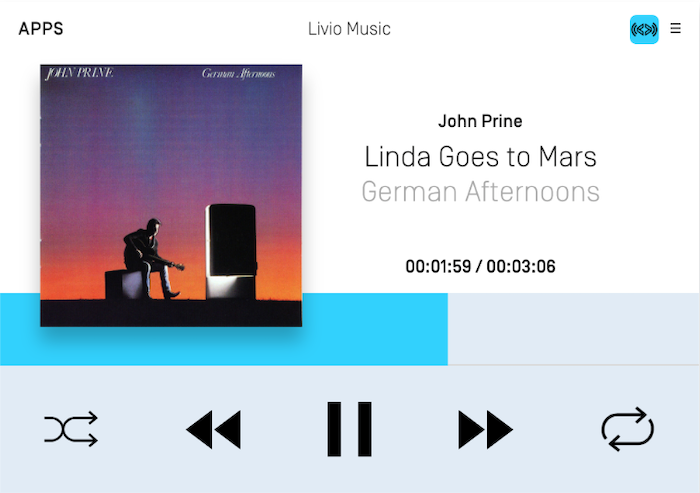
In the screenshots below, the shuffle and repeat icons have been templated. In night mode, the icons are tinted white and in day mode the icons are tinted black.
Night Mode
Day Mode
const image = new SDL.manager.file.filetypes.SdlArtwork("<#ArtworkName#>", SDL.rpc.enums.FileType.GRAPHIC_PNG, <#FileData#>, true);
image.setTemplateImage(true);
Static Icons
Static icons are pre-existing images on the remote system that you may reference and use in your own application. Each OEM will design their own custom static icons but you can get an overview of the available icons from the icons designed for the open source Generic HMI. Static icons are fully supported by the screen manager via an SdlArtwork initializer. Static icons can be used in primary and secondary graphic fields, soft button image fields, and menu icon fields.
The SDL JavaScript Suite is currently missing support for the StaticIconName enum. This will be addressed in a future release. Constructing a StaticIcon can still be done using the appropriate hex values found here.
const staticIconAlbumName = '0x21';
const staticIconAlbumBytes = 0x21;
const staticIconArt = new SDL.manager.file.filetypes.SdlArtwork()
    .setName(staticIconAlbumName)
    .setFileData(staticIconAlbumBytes)
    .setStaticIcon(true)
    .setPersistent(false);