

Text, Images, and Buttons
This guide covers presenting text and images on the screen as well as creating, showing, and responding to custom buttons you create.
Template Fields
The SDLScreenManager is a manager for easily creating text, images and soft buttons for your SDL app. To update the UI, simply give the manager the new UI data and sandwich the update between the manager's beginUpdates and endUpdatesWithCompletionHandler: methods.
| SDLScreenManager Parameter Name | Description |
|---|---|
| textField1 | The text displayed in a single-line display, or in the upper display line of a multi-line display |
| textField2 | The text displayed on the second display line of a multi-line display |
| textField3 | The text displayed on the third display line of a multi-line display |
| textField4 | The text displayed on the bottom display line of a multi-line display |
| title | The title of the displayed template |
| mediaTrackTextField | The text displayed in the in the track field. This field is only valid for media applications |
| primaryGraphic | The primary image in a template that supports images |
| secondaryGraphic | The second image in a template that supports multiple images |
| textAlignment | The text justification for the text fields. The text alignment can be left, center, or right |
| softButtonObjects | An array of buttons. Each template supports a different number of soft buttons |
| textField1Type | The type of data provided in textField1 |
| textField2Type | The type of data provided in textField2 |
| textField3Type | The type of data provided in textField3 |
| textField4Type | The type of data provided in textField4 |
Objective-C
[self.sdlManager.screenManager beginUpdates];

self.sdlManager.screenManager.textField1 = @"<#Line 1 of Text#>";
self.sdlManager.screenManager.textField2 = @"<#Line 2 of Text#>";
self.sdlManager.screenManager.title = @"<#Title#>"
self.sdlManager.screenManager.primaryGraphic = [SDLArtwork persistentArtworkWithImage:[UIImage imageNamed:@"<#Image Name#>"] asImageFormat:<#SDLArtworkImageFormat#>];
SDLSoftButtonObject *softButton = [[SDLSoftButtonObject alloc] initWithName:@"<#Soft Button Name#>" state:[[SDLSoftButtonState alloc] initWithStateName:@"<#Soft Button State Name#>" text:@"<#Button Text#>" artwork:<#SDLArtwork#>] handler:^(SDLOnButtonPress * _Nullable buttonPress, SDLOnButtonEvent * _Nullable buttonEvent) {
    if (buttonPress == nil) { return; }
    <#Button Selected#>
}];
self.sdlManager.screenManager.softButtonObjects = @[softButton];

[self.sdlManager.screenManager endUpdatesWithCompletionHandler:^(NSError * _Nullable error) {
    if (error != nil) {
        <#Error Updating UI#>
    } else {
        <#Update to UI was Successful#>
    }
}];
Swift
sdlManager.screenManager.beginUpdates()

sdlManager.screenManager.textField1 = "<#Line 1 of Text#>"
sdlManager.screenManager.textField2 = "<#Line 2 of Text#>"
sdlManager.screenManager.title = "<#Title#>"
sdlManager.screenManager.primaryGraphic = <#SDLArtwork#>
sdlManager.screenManager.softButtonObjects = [<#SDLButtonObject#>, <#SDLButtonObject#>]

sdlManager.screenManager.endUpdates { (error) in
    if error != nil {
        <#Error Updating UI#>
    } else {
        <#Update to UI was Successful#>
    }
}
Removing Text and Images
After you have displayed text and graphics onto the screen, you may want to remove those from being displayed. In order to do so, you only need to set the screen manager property to nil.
Objective-C
self.sdlManager.screenManager.textField1 = nil;
self.sdlManager.screenManager.textField2 = nil;
self.sdlManager.screenManager.title = nil;
self.sdlManager.screenManager.primaryGraphic = nil;
Swift
sdlManager.screenManager.textField1 = nil
sdlManager.screenManager.textField2 = nil
sdlManager.screenManager.title = nil
sdlManager.screenManager.primaryGraphic = nil
Soft Button Objects
To create a soft button using the ScreenManager, you only need to create a custom name for the button and provide the text for the button's label and/or an image for the button's icon. If your button cycles between different states (e.g. a button used to set the repeat state of a song playlist can have three states: repeat-off, repeat-one, and repeat-all) you can upload all the states on initialization. Soft Buttons can contain images, text or both.
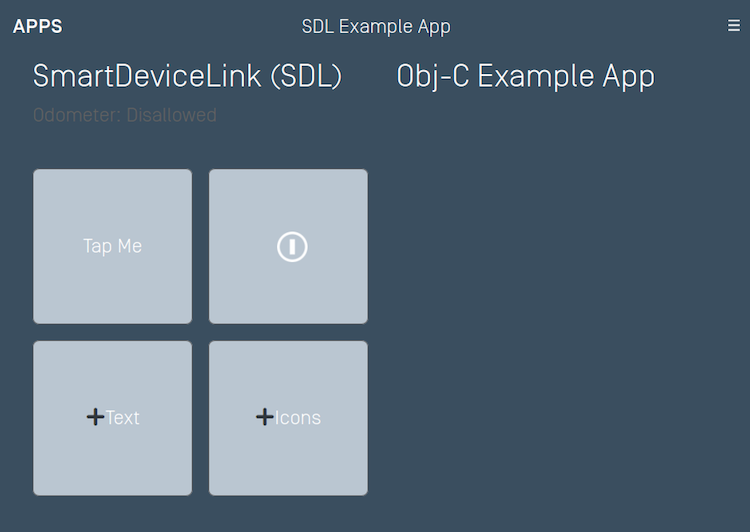
Soft Button Layouts
Soft Button (Text Only)
Objective-C
SDLSoftButtonState *textState = [[SDLSoftButtonState alloc] initWithStateName:@"<#State Name#>" text:@"<#Button Label Text#>" image:nil];

SDLSoftButtonObject *softButton = [[SDLSoftButtonObject alloc] initWithName:@"<#Button Name#>" state:textState handler:^(SDLOnButtonPress * _Nullable buttonPress, SDLOnButtonEvent * _Nullable buttonEvent) {
    if (buttonPress == nil) { return; }
    <#Button selected#>
}];

self.sdlManager.screenManager.softButtonObjects =  @[softButton];
Swift
let textState = SDLSoftButtonState(stateName: "<#State Name#>", text: "<#Button Label Text#>", image: nil)

let softButton = SDLSoftButtonObject(name: "<#Button Name#>", state: textState) { (buttonPress, buttonEvent) in
    guard buttonPress != nil else { return }
    <#Button selected#>
}

sdlManager.screenManager.softButtonObjects = [softButton]
Soft Button (Image Only)
To see if soft buttons support images you should check the softButtonCapabilities property on SDLManagerssystemCapabilityManager.
Objective-C
// Check to see if soft buttons support images
BOOL softButtonsSupportImages = self.sdlManager.systemCapabilityManager.softButtonCapabilities.firstObject.imageSupported.boolValue;

// If HMI supports images create a soft button with an image
SDLSoftButtonState *imageState = [[SDLSoftButtonState alloc] initWithStateName:@"<#State Name#>" text:nil image:[[UIImage imageNamed:@"<#Image Name#>"] imageWithRenderingMode:<#UIImageRenderingMode#>]];

SDLSoftButtonObject *softButton = [[SDLSoftButtonObject alloc] initWithName:@"<#Button Name#>" state:imageState handler:^(SDLOnButtonPress * _Nullable buttonPress, SDLOnButtonEvent * _Nullable buttonEvent) {
    if (buttonPress == nil) { return; }
    <#Button selected#>
}];

self.sdlManager.screenManager.softButtonObjects =  @[softButton];
Swift
// Check to see if soft buttons support images
let supportsImages = sdlManager.systemCapabilityManager.softButtonCapabilities?.first?.imageSupported.boolValue ?? false

// If HMI supports images create a soft button with an image
let imageState = SDLSoftButtonState(stateName: "State Name", text: "<#State Name#>", image: UIImage(named:"<#Image Name#>")?.withRenderingMode(<#RenderingMode#>))

let softButton = SDLSoftButtonObject(name: "<#Button Name#>", state: imageState) { (buttonPress, buttonEvent) in
    guard buttonPress != nil else { return }
    <#Button selected#>
}

sdlManager.screenManager.softButtonObjects = [softButton]
Soft Button (Image and Text)
Objective-C
SDLSoftButtonState *state = [[SDLSoftButtonState alloc] initWithStateName:@"<#State Name#>" text:@"<#Button Label Text#>" image:[[UIImage imageNamed:@"<#Image Name#>"] imageWithRenderingMode:<#UIImageRenderingMode#>]];

SDLSoftButtonObject *softButton = [[SDLSoftButtonObject alloc] initWithName:@"<#Button Name#>" state:state handler:^(SDLOnButtonPress * _Nullable buttonPress, SDLOnButtonEvent * _Nullable buttonEvent) {
    if (buttonPress == nil) { return; }
    <#Button selected#>
}];

self.sdlManager.screenManager.softButtonObjects =  @[softButton];
Swift
let state = SDLSoftButtonState(stateName: "<#State Name#>", text: "<#Button Label Text#>", image: UIImage(named:"<#Image Name#>")?.withRenderingMode(<#RenderingMode#>))

let softButton = SDLSoftButtonObject(name: "<#Button Name#>", state: state) { (buttonPress, buttonEvent) in
    guard buttonPress != nil else { return }
    <#Button selected#>
}

sdlManager.screenManager.softButtonObjects = [softButton]
Highlighting the Soft Button
Highlight On
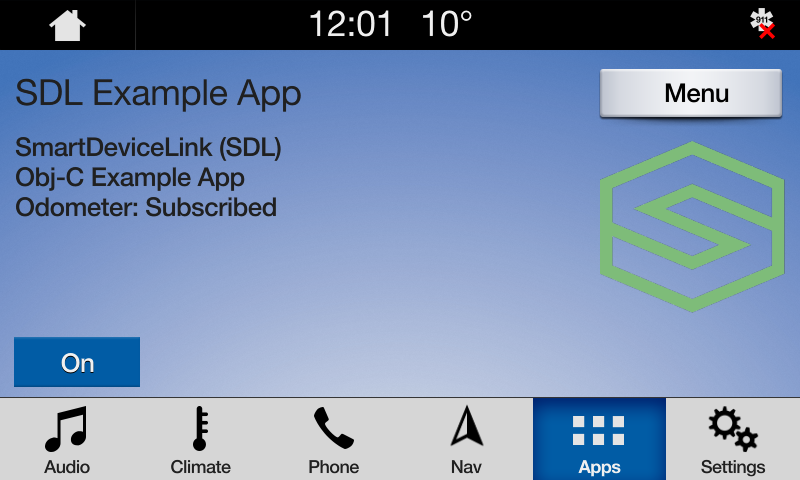
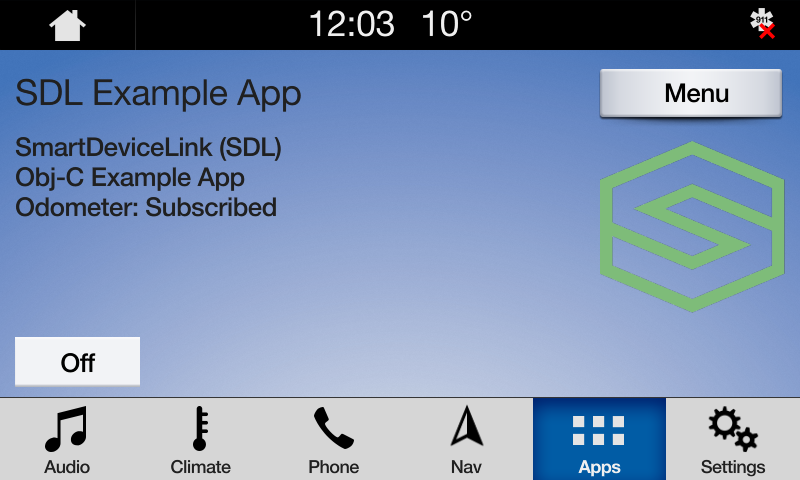
Highlight Off
Objective-C
SDLSoftButtonState *highlightOn = [[SDLSoftButtonState alloc] initWithStateName:@"<#Soft Button State Name#>" text:@"On" artwork:<#SDLArtwork#>];
highlightOn.highlighted = YES;

SDLSoftButtonState *highlightOff = [[SDLSoftButtonState alloc] initWithStateName:@"<#Soft Button State Name#>" text:@"Off" artwork:<#SDLArtwork#>];
highlightOff.highlighted = NO;

__weak typeof(self) weakSelf = self;
SDLSoftButtonObject *highlightButton = [[SDLSoftButtonObject alloc] initWithName:@"HighlightButton" states:@[highlightOn, highlightOff] initialStateName:highlightOn.name handler:^(SDLOnButtonPress * _Nullable buttonPress, SDLOnButtonEvent * _Nullable buttonEvent) {
    if (buttonPress == nil) { return; }
    SDLSoftButtonObject *transitionHighlight = [weakSelf.sdlManager.screenManager softButtonObjectNamed:@"HighlightButton"];
    [transitionHighlight transitionToNextState];
}];
Swift
let highlightOn = SDLSoftButtonState(stateName: "<#Soft Button State Name#>", text: "On", artwork: <#SDLArtwork#>)
highlightOn.isHighlighted = true
let highlightOff = SDLSoftButtonState(stateName: "<#Soft Button State Name#>", text: "Off", artwork: <#SDLArtwork#>)
highlightOff.isHighlighted = false

return SDLSoftButtonObject(name: "HighlightButton", states: [highlightOn, highlightOff], initialStateName: highlightOn.name) { [unowned self] (buttonPress, buttonEvent) in
    guard buttonPress != nil else { return }
    let transitionHighlight = self.sdlManager.screenManager.softButtonObjectNamed("HighlightButton")
    transitionHighlight?.transitionToNextState()
}
Updating the Soft Button State
When the soft button state needs to be updated, simply tell the SoftButtonObject to transition to the next state. If your button states do not cycle in a predictable order, you can also tell the soft button the state to transition to by passing the stateName of the new soft button state.
Objective-C
SDLSoftButtonState *softButtonState1 = [[SDLSoftButtonState alloc] initWithStateName:@"<#Soft Button State Name#>" text:@"<#Button Label Text#>" artwork:<#SDLArtwork#>];
SDLSoftButtonState *softButtonState2 = [[SDLSoftButtonState alloc] initWithStateName:@"<#Soft Button State Name#>" text:@"<#Button Label Text#>" artwork:<#SDLArtwork#>];
SDLSoftButtonObject *softButtonObject = [[SDLSoftButtonObject alloc] initWithName:@"<#Soft Button Object Name#>" states:@[softButtonState1, softButtonState2] initialStateName:<#Soft Button State#>.name handler:^(SDLOnButtonPress * _Nullable buttonPress, SDLOnButtonEvent * _Nullable buttonEvent) {
    if (buttonPress == nil) { return; }
    <#Button Selected#>
}];
self.sdlManager.screenManager.softButtonObjects = @[softButtonObject];

// Transition to a new state
SDLSoftButtonObject *retrievedSoftButtonObject = [self.sdlManager.screenManager softButtonObjectNamed:@"<#Soft Button Object Name#>"];
[retrievedSoftButtonObject transitionToNextState];
Swift
let softButtonState1 = SDLSoftButtonState(stateName: "<#Soft Button State Name#>", text: "<#Button Label Text#>", artwork: <#SDLArtwork#>)
let softButtonState2 = SDLSoftButtonState(stateName: "<#Soft Button State Name#>", text: "<#Button Label Text#>", artwork: <#SDLArtwork#>)
let softButtonObject = SDLSoftButtonObject(name: "<#Soft Button Object Name#>", states: [softButtonState1, softButtonState2], initialStateName: <#Soft Button State#>.name) { (buttonPress, buttonEvent) in
    guard buttonPress != nil else { return }
    <#Button Selected#>
}
sdlManager.screenManager.softButtonObjects = [softButtonObject]

// Transition to a new state
let retrievedSoftButtonObject = sdlManager.screenManager.softButtonObjectNamed("<#Soft Button Object Name#>")
retrievedSoftButtonObject?.transitionToNextState()
Deleting Soft Buttons
To delete soft buttons, simply pass the screen manager a new array of soft buttons. To delete all soft buttons, simply pass the screen manager an empty array.
Objective-C
self.sdlManager.screenManager.softButtonObjects = @[];
Swift
sdlManager.screenManager.softButtonObjects = []
Templating Images
When connected to a remote system running SDL Core 5.0+, you may be able to use template images. Templated images are tinted by Core so the image is visible regardless of whether your user has set the head unit to day or night mode. For example, if a head unit is in night mode with a dark theme (see Template Coloring in the Integration Basics section for more details on how to customize theme colors), then your templated images will be displayed as white. In the day theme, the image will automatically change to black.
Soft buttons, menu icons, and primary / secondary graphics can all be templated. A template image works very much like it does on iOS and in fact, it uses the same API as iOS. Any SDLArtwork created with a UIImage that has a renderingMode of alwaysTemplate will be templated via SDL as well. Images that you wish to template must be PNGs with a transparent background and only one color for the icon. Therefore, templating is only useful for things like icons and not for images that must be rendered in a specific color.
Templated Images Example
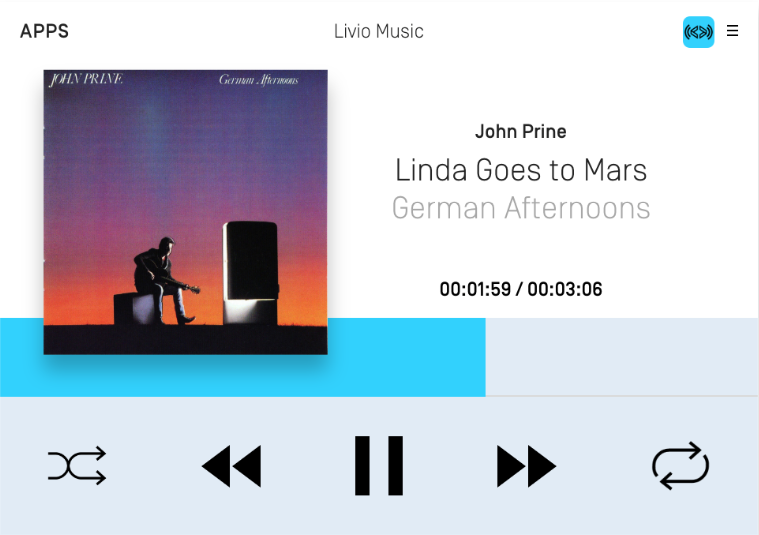
In the screenshots below, the shuffle and repeat icons have been templated. In night mode, the icons are tinted white and in day mode the icons are tinted black.
Night Mode
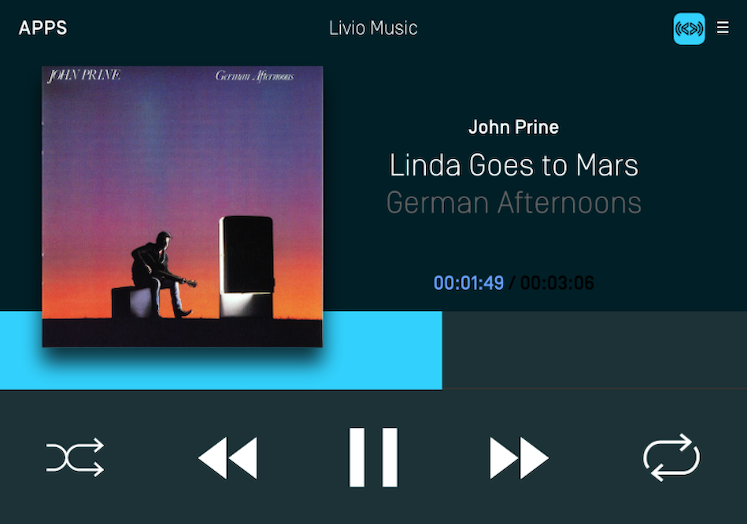
Day Mode
Objective-C
UIImage *image = [[UIImage imageNamed:@"<#String#>"] imageWithRenderingMode:UIImageRenderingModeAlwaysTemplate];
SDLArtwork *artwork = [SDLArtwork artworkWithImage:image asImageFormat:SDLArtworkImageFormatPNG];
Swift
let image = UIImage(named: "<#String#>")?.withRenderingMode(.alwaysTemplate)
let artwork = SDLArtwork(image: image, persistent: true, as: .PNG)
Static Icons
Static icons are pre-existing images on the remote system that you may reference and use in your own application. Static icons are fully supported by the screen manager via an SDLArtwork initializer.
Static icons can be used in primary and secondary graphic fields, soft button image fields, and menu icon fields.
Objective-C
SDLArtwork *staticIconArt = [[SDLArtwork alloc] initWithStaticIcon:SDLStaticIconNameAlbum];;
SDLSoftButtonState *softButtonState1 = [[SDLSoftButtonState alloc] initWithStateName:@"<#Soft Button State Name#>" text:@"<#Button Label Text#>" artwork:staticIconArt];

<#Set the state into an `SDLSoftButtonObject` and then set the screen manager array of soft buttons#>
Swift
let staticIconArt = SDLArtwork(staticIcon: .album)
let softButtonState1 = SDLSoftButtonState(stateName: "<#Soft Button State Name#>", text: "<#Button Label Text#>", artwork: staticIconArt)

<#Set the state into an `SDLSoftButtonObject` and then set the screen manager array of soft buttons#>
Using RPCs
If you don't want to use the screen manager, you can just send raw Show RPC requests to Core.