

- Getting Started
- Displaying a User Interface
- Customizing Look and Functionality
- Speech and Audio
- Other SDL Features
- Video Streaming for Navigation Apps
- Developer Tools
- Migrating to Newer SDL iOS Versions
- Frequently Asked Questions
- API Reference Documentation
- Categories
- Classes
- SDLAddCommand
- SDLAddCommandResponse
- SDLAddSubMenu
- SDLAddSubMenuResponse
- SDLAirbagStatus
- SDLAlert
- SDLAlertAudioData
- SDLAlertManeuver
- SDLAlertManeuverResponse
- SDLAlertResponse
- SDLAlertView
- SDLAppCapability
- SDLAppInfo
- SDLAppServiceCapability
- SDLAppServiceData
- SDLAppServiceManifest
- SDLAppServiceRecord
- SDLAppServicesCapabilities
- SDLArtwork
- SDLAudioControlCapabilities
- SDLAudioControlData
- SDLAudioData
- SDLAudioFile
- SDLAudioPassThruCapabilities
- SDLAudioStreamManager
- SDLBeltStatus
- SDLBodyInformation
- SDLButtonCapabilities
- SDLButtonPress
- SDLButtonPressResponse
- SDLCancelInteraction
- SDLCancelInteractionResponse
- SDLCarWindowViewController
- SDLChangeRegistration
- SDLChangeRegistrationResponse
- SDLChoice
- SDLChoiceCell
- SDLChoiceSet
- SDLClimateControlCapabilities
- SDLClimateControlData
- SDLClimateData
- SDLCloseApplication
- SDLCloseApplicationResponse
- SDLCloudAppProperties
- SDLClusterModeStatus
- SDLConfiguration
- SDLCreateInteractionChoiceSet
- SDLCreateInteractionChoiceSetResponse
- SDLCreateWindow
- SDLCreateWindowResponse
- SDLDIDResult
- SDLDateTime
- SDLDeleteCommand
- SDLDeleteCommandResponse
- SDLDeleteFile
- SDLDeleteFileResponse
- SDLDeleteInteractionChoiceSet
- SDLDeleteInteractionChoiceSetResponse
- SDLDeleteSubMenu
- SDLDeleteSubMenuResponse
- SDLDeleteWindow
- SDLDeleteWindowResponse
- SDLDeviceInfo
- SDLDeviceStatus
- SDLDiagnosticMessage
- SDLDiagnosticMessageResponse
- SDLDialNumber
- SDLDialNumberResponse
- SDLDisplayCapabilities
- SDLDisplayCapability
- SDLDoorStatus
- SDLDriverDistractionCapability
- SDLDynamicUpdateCapabilities
- SDLECallInfo
- SDLEmergencyEvent
- SDLEncodedSyncPData
- SDLEncodedSyncPDataResponse
- SDLEncryptionConfiguration
- SDLEndAudioPassThru
- SDLEndAudioPassThruResponse
- SDLEqualizerSettings
- SDLFile
- SDLFileManager
- SDLFileManagerConfiguration
- SDLFuelRange
- SDLFunctionID
- SDLGPSData
- SDLGateStatus
- SDLGearStatus
- SDLGenericResponse
- SDLGetAppServiceData
- SDLGetAppServiceDataResponse
- SDLGetCloudAppProperties
- SDLGetCloudAppPropertiesResponse
- SDLGetDTCs
- SDLGetDTCsResponse
- SDLGetFile
- SDLGetFileResponse
- SDLGetInteriorVehicleData
- SDLGetInteriorVehicleDataConsent
- SDLGetInteriorVehicleDataConsentResponse
- SDLGetInteriorVehicleDataResponse
- SDLGetSystemCapability
- SDLGetSystemCapabilityResponse
- SDLGetVehicleData
- SDLGetVehicleDataResponse
- SDLGetWayPoints
- SDLGetWayPointsResponse
- SDLGrid
- SDLHMICapabilities
- SDLHMIPermissions
- SDLHMISettingsControlCapabilities
- SDLHMISettingsControlData
- SDLHapticRect
- SDLHeadLampStatus
- SDLImage
- SDLImageField
- SDLImageResolution
- SDLKeyboardCapabilities
- SDLKeyboardLayoutCapability
- SDLKeyboardProperties
- SDLLifecycleConfiguration
- SDLLifecycleConfigurationUpdate
- SDLLightCapabilities
- SDLLightControlCapabilities
- SDLLightControlData
- SDLLightState
- SDLListFiles
- SDLListFilesResponse
- SDLLocationCoordinate
- SDLLocationDetails
- SDLLockScreenConfiguration
- SDLLockScreenViewController
- SDLLogConfiguration
- SDLLogFileModule
- SDLLogFilter
- SDLLogManager
- SDLLogTargetAppleSystemLog
- SDLLogTargetFile
- SDLLogTargetOSLog
- SDLManager
- SDLMassageCushionFirmness
- SDLMassageModeData
- SDLMediaServiceData
- SDLMediaServiceManifest
- SDLMenuCell
- SDLMenuConfiguration
- SDLMenuParams
- SDLMetadataTags
- SDLModuleData
- SDLModuleInfo
- SDLMsgVersion
- SDLMyKey
- SDLNavigationCapability
- SDLNavigationInstruction
- SDLNavigationServiceData
- SDLNavigationServiceManifest
- SDLNotificationConstants
- SDLOasisAddress
- SDLOnAppCapabilityUpdated
- SDLOnAppInterfaceUnregistered
- SDLOnAppServiceData
- SDLOnAudioPassThru
- SDLOnButtonEvent
- SDLOnButtonPress
- SDLOnCommand
- SDLOnDriverDistraction
- SDLOnEncodedSyncPData
- SDLOnHMIStatus
- SDLOnHashChange
- SDLOnInteriorVehicleData
- SDLOnKeyboardInput
- SDLOnLanguageChange
- SDLOnPermissionsChange
- SDLOnRCStatus
- SDLOnSubtleAlertPressed
- SDLOnSyncPData
- SDLOnSystemCapabilityUpdated
- SDLOnSystemRequest
- SDLOnTBTClientState
- SDLOnTouchEvent
- SDLOnUpdateFile
- SDLOnUpdateSubMenu
- SDLOnVehicleData
- SDLOnWayPointChange
- SDLParameterPermissions
- SDLPerformAppServiceInteraction
- SDLPerformAppServiceInteractionResponse
- SDLPerformAudioPassThru
- SDLPerformAudioPassThruResponse
- SDLPerformInteraction
- SDLPerformInteractionResponse
- SDLPermissionElement
- SDLPermissionItem
- SDLPermissionManager
- SDLPhoneCapability
- SDLPinchGesture
- SDLPresetBankCapabilities
- SDLPublishAppService
- SDLPublishAppServiceResponse
- SDLPutFile
- SDLPutFileResponse
- SDLRDSData
- SDLRGBColor
- SDLRPCMessage
- SDLRPCNotification
- SDLRPCNotificationNotification
- SDLRPCPermissionStatus
- SDLRPCRequest
- SDLRPCRequestNotification
- SDLRPCResponse
- SDLRPCResponseNotification
- SDLRPCStruct
- SDLRadioControlCapabilities
- SDLRadioControlData
- SDLReadDID
- SDLReadDIDResponse
- SDLRectangle
- SDLRegisterAppInterface
- SDLRegisterAppInterfaceResponse
- SDLReleaseInteriorVehicleDataModule
- SDLReleaseInteriorVehicleDataModuleResponse
- SDLRemoteControlCapabilities
- SDLResetGlobalProperties
- SDLResetGlobalPropertiesResponse
- SDLRoofStatus
- SDLSISData
- SDLScreenManager
- SDLScreenParams
- SDLScrollableMessage
- SDLScrollableMessageResponse
- SDLSeatControlCapabilities
- SDLSeatControlData
- SDLSeatLocation
- SDLSeatLocationCapability
- SDLSeatMemoryAction
- SDLSeatOccupancy
- SDLSeatStatus
- SDLSeekStreamingIndicator
- SDLSendHapticData
- SDLSendHapticDataResponse
- SDLSendLocation
- SDLSendLocationResponse
- SDLSetAppIcon
- SDLSetAppIconResponse
- SDLSetCloudAppProperties
- SDLSetCloudAppPropertiesResponse
- SDLSetDisplayLayout
- SDLSetDisplayLayoutResponse
- SDLSetGlobalProperties
- SDLSetGlobalPropertiesResponse
- SDLSetInteriorVehicleData
- SDLSetInteriorVehicleDataResponse
- SDLSetMediaClockTimer
- SDLSetMediaClockTimerResponse
- SDLShow
- SDLShowAppMenu
- SDLShowAppMenuResponse
- SDLShowConstantTBT
- SDLShowConstantTBTResponse
- SDLShowResponse
- SDLSingleTireStatus
- SDLSlider
- SDLSliderResponse
- SDLSoftButton
- SDLSoftButtonCapabilities
- SDLSoftButtonObject
- SDLSoftButtonState
- SDLSpeak
- SDLSpeakResponse
- SDLStabilityControlsStatus
- SDLStartTime
- SDLStationIDNumber
- SDLStreamingMediaConfiguration
- SDLStreamingMediaManager
- SDLStreamingVideoScaleManager
- SDLSubscribeButton
- SDLSubscribeButtonResponse
- SDLSubscribeVehicleData
- SDLSubscribeVehicleDataResponse
- SDLSubscribeWayPoints
- SDLSubscribeWayPointsResponse
- SDLSubtleAlert
- SDLSubtleAlertResponse
- SDLSyncPData
- SDLSyncPDataResponse
- SDLSystemCapability
- SDLSystemCapabilityManager
- SDLSystemInfo
- SDLSystemRequest
- SDLSystemRequestResponse
- SDLTTSChunk
- SDLTemperature
- SDLTemplateColorScheme
- SDLTemplateConfiguration
- SDLTextField
- SDLTireStatus
- SDLTouch
- SDLTouchCoord
- SDLTouchEvent
- SDLTouchEventCapabilities
- SDLTouchManager
- SDLTurn
- SDLUnpublishAppService
- SDLUnpublishAppServiceResponse
- SDLUnregisterAppInterface
- SDLUnregisterAppInterfaceResponse
- SDLUnsubscribeButton
- SDLUnsubscribeButtonResponse
- SDLUnsubscribeVehicleData
- SDLUnsubscribeVehicleDataResponse
- SDLUnsubscribeWayPoints
- SDLUnsubscribeWayPointsResponse
- SDLUpdateTurnList
- SDLUpdateTurnListResponse
- SDLVRHelpItem
- SDLVehicleDataResult
- SDLVehicleType
- SDLVersion
- SDLVideoStreamingCapability
- SDLVideoStreamingFormat
- SDLVideoStreamingRange
- SDLVoiceCommand
- SDLWeatherAlert
- SDLWeatherData
- SDLWeatherServiceData
- SDLWeatherServiceManifest
- SDLWindowCapability
- SDLWindowState
- SDLWindowStatus
- SDLWindowTypeCapabilities
- Constants
- SDLAmbientLightStatusDay
- SDLAmbientLightStatusInvalid
- SDLAmbientLightStatusNight
- SDLAmbientLightStatusTwilight1
- SDLAmbientLightStatusTwilight2
- SDLAmbientLightStatusTwilight3
- SDLAmbientLightStatusTwilight4
- SDLAmbientLightStatusUnknown
- SDLAppCapabilityTypeVideoStreaming
- SDLAppHMITypeBackgroundProcess
- SDLAppHMITypeCommunication
- SDLAppHMITypeDefault
- SDLAppHMITypeInformation
- SDLAppHMITypeMedia
- SDLAppHMITypeMessaging
- SDLAppHMITypeNavigation
- SDLAppHMITypeProjection
- SDLAppHMITypeRemoteControl
- SDLAppHMITypeSocial
- SDLAppHMITypeSystem
- SDLAppHMITypeTesting
- SDLAppHMITypeWebView
- SDLAppInterfaceUnregisteredReasonAppUnauthorized
- SDLAppInterfaceUnregisteredReasonBluetoothOff
- SDLAppInterfaceUnregisteredReasonDriverDistractionViolation
- SDLAppInterfaceUnregisteredReasonFactoryDefaults
- SDLAppInterfaceUnregisteredReasonIgnitionOff
- SDLAppInterfaceUnregisteredReasonLanguageChange
- SDLAppInterfaceUnregisteredReasonMasterReset
- SDLAppInterfaceUnregisteredReasonProtocolViolation
- SDLAppInterfaceUnregisteredReasonRequestWhileInNoneHMILevel
- SDLAppInterfaceUnregisteredReasonResourceConstraint
- SDLAppInterfaceUnregisteredReasonTooManyRequests
- SDLAppInterfaceUnregisteredReasonUSBDisconnected
- SDLAppInterfaceUnregisteredReasonUnsupportedHMIResource
- SDLAppServiceTypeMedia
- SDLAppServiceTypeNavigation
- SDLAppServiceTypeWeather
- SDLAppStateActive
- SDLAppStateInactive
- SDLAudioStreamDidStartNotification
- SDLAudioStreamDidStopNotification
- SDLAudioStreamManagerStateReady
- SDLAudioStreamManagerStateShuttingDown
- SDLAudioStreamManagerStateStarting
- SDLAudioStreamManagerStateStopped
- SDLAudioStreamingIndicatorPause
- SDLAudioStreamingIndicatorPlay
- SDLAudioStreamingIndicatorPlayPause
- SDLAudioStreamingIndicatorStop
- SDLAudioStreamingStateAttenuated
- SDLAudioStreamingStateAudible
- SDLAudioStreamingStateNotAudible
- SDLAudioTypePCM
- SDLBitsPerSample16Bit
- SDLBitsPerSample8Bit
- SDLButtonEventModeButtonDown
- SDLButtonEventModeButtonUp
- SDLButtonNameAC
- SDLButtonNameACMax
- SDLButtonNameCustomButton
- SDLButtonNameDefrost
- SDLButtonNameDefrostMax
- SDLButtonNameDefrostRear
- SDLButtonNameEject
- SDLButtonNameFanDown
- SDLButtonNameFanUp
- SDLButtonNameLowerVent
- SDLButtonNameNavCenterLocation
- SDLButtonNameNavHeadingToggle
- SDLButtonNameNavPanDown
- SDLButtonNameNavPanDownLeft
- SDLButtonNameNavPanDownRight
- SDLButtonNameNavPanLeft
- SDLButtonNameNavPanRight
- SDLButtonNameNavPanUp
- SDLButtonNameNavPanUpLeft
- SDLButtonNameNavPanUpRight
- SDLButtonNameNavRotateClockwise
- SDLButtonNameNavRotateCounterClockwise
- SDLButtonNameNavTiltToggle
- SDLButtonNameNavZoomIn
- SDLButtonNameNavZoomOut
- SDLButtonNameOk
- SDLButtonNamePlayPause
- SDLButtonNamePreset0
- SDLButtonNamePreset1
- SDLButtonNamePreset2
- SDLButtonNamePreset3
- SDLButtonNamePreset4
- SDLButtonNamePreset5
- SDLButtonNamePreset6
- SDLButtonNamePreset7
- SDLButtonNamePreset8
- SDLButtonNamePreset9
- SDLButtonNameRecirculate
- SDLButtonNameRepeat
- SDLButtonNameSearch
- SDLButtonNameSeekLeft
- SDLButtonNameSeekRight
- SDLButtonNameShuffle
- SDLButtonNameSource
- SDLButtonNameTempDown
- SDLButtonNameTempUp
- SDLButtonNameTuneDown
- SDLButtonNameTuneUp
- SDLButtonNameUpperVent
- SDLButtonNameVolumeDown
- SDLButtonNameVolumeUp
- SDLButtonPressModeLong
- SDLButtonPressModeShort
- SDLCapacityUnitKilograms
- SDLCapacityUnitKilowatthours
- SDLCapacityUnitLiters
- SDLCarModeStatusCrash
- SDLCarModeStatusFactory
- SDLCarModeStatusNormal
- SDLCarModeStatusTransport
- SDLCharacterSetAscii
- SDLCharacterSetCID1
- SDLCharacterSetCID2
- SDLCharacterSetIso88591
- SDLCharacterSetType2
- SDLCharacterSetType5
- SDLCharacterSetUtf8
- SDLCompassDirectionEast
- SDLCompassDirectionNorth
- SDLCompassDirectionNortheast
- SDLCompassDirectionNorthwest
- SDLCompassDirectionSouth
- SDLCompassDirectionSoutheast
- SDLCompassDirectionSouthwest
- SDLCompassDirectionWest
- SDLComponentVolumeStatusAlert
- SDLComponentVolumeStatusFault
- SDLComponentVolumeStatusLow
- SDLComponentVolumeStatusNormal
- SDLComponentVolumeStatusNotSupported
- SDLComponentVolumeStatusUnknown
- SDLDefrostZoneAll
- SDLDefrostZoneFront
- SDLDefrostZoneNone
- SDLDefrostZoneRear
- SDLDeliveryModeDestination
- SDLDeliveryModePrompt
- SDLDeliveryModeQueue
- SDLDeviceLevelStatusFourBars
- SDLDeviceLevelStatusNotProvided
- SDLDeviceLevelStatusOneBar
- SDLDeviceLevelStatusThreeBars
- SDLDeviceLevelStatusTwoBars
- SDLDeviceLevelStatusZeroBars
- SDLDidBecomeReady
- SDLDidChangeDriverDistractionStateNotification
- SDLDidChangeHMIStatusNotification
- SDLDidChangeLanguageNotification
- SDLDidChangePermissionsNotification
- SDLDidChangeTurnByTurnStateNotification
- SDLDidReceiveAddCommandRequest
- SDLDidReceiveAddCommandResponse
- SDLDidReceiveAddSubMenuRequest
- SDLDidReceiveAddSubMenuResponse
- SDLDidReceiveAlertManeuverRequest
- SDLDidReceiveAlertManeuverResponse
- SDLDidReceiveAlertRequest
- SDLDidReceiveAlertResponse
- SDLDidReceiveAppServiceDataNotification
- SDLDidReceiveAppUnregisteredNotification
- SDLDidReceiveAudioPassThruNotification
- SDLDidReceiveButtonEventNotification
- SDLDidReceiveButtonPressNotification
- SDLDidReceiveButtonPressRequest
- SDLDidReceiveButtonPressResponse
- SDLDidReceiveCancelInteractionRequest
- SDLDidReceiveCancelInteractionResponse
- SDLDidReceiveChangeRegistrationRequest
- SDLDidReceiveChangeRegistrationResponse
- SDLDidReceiveCloseApplicationRequest
- SDLDidReceiveCloseApplicationResponse
- SDLDidReceiveCommandNotification
- SDLDidReceiveCreateInteractionChoiceSetRequest
- SDLDidReceiveCreateInteractionChoiceSetResponse
- SDLDidReceiveCreateWindowRequest
- SDLDidReceiveCreateWindowResponse
- SDLDidReceiveDeleteCommandRequest
- SDLDidReceiveDeleteCommandResponse
- SDLDidReceiveDeleteFileRequest
- SDLDidReceiveDeleteFileResponse
- SDLDidReceiveDeleteInteractionChoiceSetRequest
- SDLDidReceiveDeleteInteractionChoiceSetResponse
- SDLDidReceiveDeleteSubMenuRequest
- SDLDidReceiveDeleteSubmenuResponse
- SDLDidReceiveDeleteWindowRequest
- SDLDidReceiveDeleteWindowResponse
- SDLDidReceiveDiagnosticMessageRequest
- SDLDidReceiveDiagnosticMessageResponse
- SDLDidReceiveDialNumberRequest
- SDLDidReceiveDialNumberResponse
- SDLDidReceiveEncodedDataNotification
- SDLDidReceiveEncodedSyncPDataRequest
- SDLDidReceiveEncodedSyncPDataResponse
- SDLDidReceiveEndAudioPassThruRequest
- SDLDidReceiveEndAudioPassThruResponse
- SDLDidReceiveError
- SDLDidReceiveGenericResponse
- SDLDidReceiveGetAppServiceDataRequest
- SDLDidReceiveGetAppServiceDataResponse
- SDLDidReceiveGetCloudAppPropertiesRequest
- SDLDidReceiveGetCloudAppPropertiesResponse
- SDLDidReceiveGetDTCsRequest
- SDLDidReceiveGetDTCsResponse
- SDLDidReceiveGetFileRequest
- SDLDidReceiveGetFileResponse
- SDLDidReceiveGetInteriorVehicleDataConsentRequest
- SDLDidReceiveGetInteriorVehicleDataConsentResponse
- SDLDidReceiveGetInteriorVehicleDataRequest
- SDLDidReceiveGetInteriorVehicleDataResponse
- SDLDidReceiveGetSystemCapabilitiesResponse
- SDLDidReceiveGetSystemCapabilityRequest
- SDLDidReceiveGetVehicleDataRequest
- SDLDidReceiveGetVehicleDataResponse
- SDLDidReceiveGetWayPointsRequest
- SDLDidReceiveGetWaypointsResponse
- SDLDidReceiveInteriorVehicleDataNotification
- SDLDidReceiveKeyboardInputNotification
- SDLDidReceiveListFilesRequest
- SDLDidReceiveListFilesResponse
- SDLDidReceiveLockScreenIcon
- SDLDidReceiveNewHashNotification
- SDLDidReceivePerformAppServiceInteractionRequest
- SDLDidReceivePerformAppServiceInteractionResponse
- SDLDidReceivePerformAudioPassThruRequest
- SDLDidReceivePerformAudioPassThruResponse
- SDLDidReceivePerformInteractionRequest
- SDLDidReceivePerformInteractionResponse
- SDLDidReceivePublishAppServiceRequest
- SDLDidReceivePublishAppServiceResponse
- SDLDidReceivePutFileRequest
- SDLDidReceivePutFileResponse
- SDLDidReceiveReadDIDRequest
- SDLDidReceiveReadDIDResponse
- SDLDidReceiveRegisterAppInterfaceRequest
- SDLDidReceiveRegisterAppInterfaceResponse
- SDLDidReceiveReleaseInteriorVehicleDataModuleRequest
- SDLDidReceiveReleaseInteriorVehicleDataModuleResponse
- SDLDidReceiveRemoteControlStatusNotification
- SDLDidReceiveResetGlobalPropertiesRequest
- SDLDidReceiveResetGlobalPropertiesResponse
- SDLDidReceiveScrollableMessageRequest
- SDLDidReceiveScrollableMessageResponse
- SDLDidReceiveSendHapticDataRequest
- SDLDidReceiveSendHapticDataResponse
- SDLDidReceiveSendLocationRequest
- SDLDidReceiveSendLocationResponse
- SDLDidReceiveSetAppIconRequest
- SDLDidReceiveSetAppIconResponse
- SDLDidReceiveSetCloudAppPropertiesRequest
- SDLDidReceiveSetCloudAppPropertiesResponse
- SDLDidReceiveSetDisplayLayoutRequest
- SDLDidReceiveSetDisplayLayoutResponse
- SDLDidReceiveSetGlobalPropertiesRequest
- SDLDidReceiveSetGlobalPropertiesResponse
- SDLDidReceiveSetInteriorVehicleDataRequest
- SDLDidReceiveSetInteriorVehicleDataResponse
- SDLDidReceiveSetMediaClockTimerRequest
- SDLDidReceiveSetMediaClockTimerResponse
- SDLDidReceiveShowAppMenuRequest
- SDLDidReceiveShowAppMenuResponse
- SDLDidReceiveShowConstantTBTRequest
- SDLDidReceiveShowConstantTBTResponse
- SDLDidReceiveShowRequest
- SDLDidReceiveShowResponse
- SDLDidReceiveSliderRequest
- SDLDidReceiveSliderResponse
- SDLDidReceiveSpeakRequest
- SDLDidReceiveSpeakResponse
- SDLDidReceiveSubscribeButtonRequest
- SDLDidReceiveSubscribeButtonResponse
- SDLDidReceiveSubscribeVehicleDataRequest
- SDLDidReceiveSubscribeVehicleDataResponse
- SDLDidReceiveSubscribeWayPointsRequest
- SDLDidReceiveSubscribeWaypointsResponse
- SDLDidReceiveSubtleAlertPressedNotification
- SDLDidReceiveSubtleAlertRequest
- SDLDidReceiveSubtleAlertResponse
- SDLDidReceiveSyncPDataNotification
- SDLDidReceiveSyncPDataRequest
- SDLDidReceiveSyncPDataResponse
- SDLDidReceiveSystemCapabilityUpdatedNotification
- SDLDidReceiveSystemRequestNotification
- SDLDidReceiveSystemRequestRequest
- SDLDidReceiveSystemRequestResponse
- SDLDidReceiveTouchEventNotification
- SDLDidReceiveUnpublishAppServiceRequest
- SDLDidReceiveUnpublishAppServiceResponse
- SDLDidReceiveUnregisterAppInterfaceRequest
- SDLDidReceiveUnregisterAppInterfaceResponse
- SDLDidReceiveUnsubscribeButtonRequest
- SDLDidReceiveUnsubscribeButtonResponse
- SDLDidReceiveUnsubscribeVehicleDataRequest
- SDLDidReceiveUnsubscribeVehicleDataResponse
- SDLDidReceiveUnsubscribeWayPointsRequest
- SDLDidReceiveUnsubscribeWaypointsResponse
- SDLDidReceiveUpdateFileNotification
- SDLDidReceiveUpdateSubMenuNotification
- SDLDidReceiveUpdateTurnListRequest
- SDLDidReceiveUpdateTurnListResponse
- SDLDidReceiveVehicleDataNotification
- SDLDidReceiveVehicleIconNotification
- SDLDidReceiveWaypointNotification
- SDLDidUpdateProjectionView
- SDLDimension2D
- SDLDimension3D
- SDLDimensionNoFix
- SDLDirectionLeft
- SDLDirectionRight
- SDLDisplayModeAuto
- SDLDisplayModeDay
- SDLDisplayModeNight
- SDLDisplayTypeCID
- SDLDisplayTypeGen26DMA
- SDLDisplayTypeGen28DMA
- SDLDisplayTypeGen38Inch
- SDLDisplayTypeGeneric
- SDLDisplayTypeMFD3
- SDLDisplayTypeMFD4
- SDLDisplayTypeMFD5
- SDLDisplayTypeNGN
- SDLDisplayTypeType2
- SDLDisplayTypeType5
- SDLDistanceUnitKilometers
- SDLDistanceUnitMiles
- SDLDoorStatusTypeAjar
- SDLDoorStatusTypeClosed
- SDLDoorStatusTypeLocked
- SDLDoorStatusTypeRemoved
- SDLDriverDistractionStateOff
- SDLDriverDistractionStateOn
- SDLECallConfirmationStatusCancelled
- SDLECallConfirmationStatusCompleteDTMFTimeout
- SDLECallConfirmationStatusCompleted
- SDLECallConfirmationStatusConfiguredOff
- SDLECallConfirmationStatusInProgress
- SDLECallConfirmationStatusNormal
- SDLECallConfirmationStatusUnsuccessful
- SDLElectronicParkBrakeStatusClosed
- SDLElectronicParkBrakeStatusDriveActive
- SDLElectronicParkBrakeStatusFault
- SDLElectronicParkBrakeStatusOpen
- SDLElectronicParkBrakeStatusTransition
- SDLEmergencyEventTypeFault
- SDLEmergencyEventTypeFrontal
- SDLEmergencyEventTypeNoEvent
- SDLEmergencyEventTypeNotSupported
- SDLEmergencyEventTypeRear
- SDLEmergencyEventTypeRollover
- SDLEmergencyEventTypeSide
- SDLErrorDomainAlertManager
- SDLErrorDomainAudioStreamManager
- SDLErrorDomainCacheFileManager
- SDLErrorDomainChoiceSetManager
- SDLErrorDomainEncryptionLifecycleManager
- SDLErrorDomainFileManager
- SDLErrorDomainLifecycleManager
- SDLErrorDomainMenuManager
- SDLErrorDomainRPCStore
- SDLErrorDomainSoftButtonManager
- SDLErrorDomainSubscribeButtonManager
- SDLErrorDomainSystem
- SDLErrorDomainSystemCapabilityManager
- SDLErrorDomainTextAndGraphicManager
- SDLErrorDomainTransport
- SDLFileTypeAAC
- SDLFileTypeBMP
- SDLFileTypeBinary
- SDLFileTypeJPEG
- SDLFileTypeJSON
- SDLFileTypeMP3
- SDLFileTypePNG
- SDLFileTypeWAV
- SDLFuelCutoffStatusFault
- SDLFuelCutoffStatusNormalOperation
- SDLFuelCutoffStatusTerminateFuel
- SDLFuelTypeBattery
- SDLFuelTypeCNG
- SDLFuelTypeDiesel
- SDLFuelTypeGasoline
- SDLFuelTypeHydrogen
- SDLFuelTypeLPG
- SDLGlobalPropertyHelpPrompt
- SDLGlobalPropertyKeyboard
- SDLGlobalPropertyMenuIcon
- SDLGlobalPropertyMenuName
- SDLGlobalPropertyTimeoutPrompt
- SDLGlobalPropertyUserLocation
- SDLGlobalPropertyVoiceRecognitionHelpItems
- SDLGlobalPropertyVoiceRecognitionHelpTitle
- SDLHMILevelBackground
- SDLHMILevelFull
- SDLHMILevelLimited
- SDLHMILevelNone
- SDLHMIZoneCapabilitiesBack
- SDLHMIZoneCapabilitiesFront
- SDLHybridAppPreferenceBoth
- SDLHybridAppPreferenceCloud
- SDLHybridAppPreferenceMobile
- SDLIgnitionStableStatusMissingFromTransmitter
- SDLIgnitionStableStatusNotStable
- SDLIgnitionStableStatusStable
- SDLIgnitionStatusAccessory
- SDLIgnitionStatusInvalid
- SDLIgnitionStatusOff
- SDLIgnitionStatusRun
- SDLIgnitionStatusStart
- SDLIgnitionStatusUnknown
- SDLImageFieldNameAlertIcon
- SDLImageFieldNameAppIcon
- SDLImageFieldNameChoiceImage
- SDLImageFieldNameChoiceSecondaryImage
- SDLImageFieldNameCommandIcon
- SDLImageFieldNameGraphic
- SDLImageFieldNameLocationImage
- SDLImageFieldNameMenuCommandSecondaryImage
- SDLImageFieldNameMenuIcon
- SDLImageFieldNameMenuSubMenuSecondaryImage
- SDLImageFieldNameSecondaryGraphic
- SDLImageFieldNameShowConstantTBTIcon
- SDLImageFieldNameShowConstantTBTNextTurnIcon
- SDLImageFieldNameSoftButtonImage
- SDLImageFieldNameSubMenuIcon
- SDLImageFieldNameSubtleAlertIcon
- SDLImageFieldNameTurnIcon
- SDLImageFieldNameVoiceRecognitionHelpItem
- SDLImageTypeDynamic
- SDLImageTypeStatic
- SDLInteractionModeBoth
- SDLInteractionModeManualOnly
- SDLInteractionModeVoiceRecognitionOnly
- SDLKeyboardEventAborted
- SDLKeyboardEventCancelled
- SDLKeyboardEventInputKeyMaskDisabled
- SDLKeyboardEventInputKeyMaskEnabled
- SDLKeyboardEventKeypress
- SDLKeyboardEventSubmitted
- SDLKeyboardEventVoice
- SDLKeyboardInputMaskDisableInputKeyMask
- SDLKeyboardInputMaskEnableInputKeyMask
- SDLKeyboardInputMaskUserChoiceInputKeyMask
- SDLKeyboardLayoutAZERTY
- SDLKeyboardLayoutNumeric
- SDLKeyboardLayoutQWERTY
- SDLKeyboardLayoutQWERTZ
- SDLKeypressModeQueueKeypresses
- SDLKeypressModeResendCurrentEntry
- SDLKeypressModeSingleKeypress
- SDLLanguageArSa
- SDLLanguageCsCz
- SDLLanguageDaDk
- SDLLanguageDeDe
- SDLLanguageElGr
- SDLLanguageEnAu
- SDLLanguageEnGb
- SDLLanguageEnIn
- SDLLanguageEnSa
- SDLLanguageEnUs
- SDLLanguageEsEs
- SDLLanguageEsMx
- SDLLanguageFiFi
- SDLLanguageFrCa
- SDLLanguageFrFr
- SDLLanguageHeIl
- SDLLanguageHiIn
- SDLLanguageHuHu
- SDLLanguageIdId
- SDLLanguageItIt
- SDLLanguageJaJp
- SDLLanguageKoKr
- SDLLanguageMsMy
- SDLLanguageNlBe
- SDLLanguageNlNl
- SDLLanguageNoNo
- SDLLanguagePlPl
- SDLLanguagePtBr
- SDLLanguagePtPt
- SDLLanguageRoRo
- SDLLanguageRuRu
- SDLLanguageSkSk
- SDLLanguageSvSe
- SDLLanguageThTh
- SDLLanguageTrTr
- SDLLanguageUkUa
- SDLLanguageViVn
- SDLLanguageZhCn
- SDLLanguageZhTw
- SDLLayoutModeIconOnly
- SDLLayoutModeIconWithSearch
- SDLLayoutModeKeyboard
- SDLLayoutModeListOnly
- SDLLayoutModeListWithSearch
- SDLLightNameAmbientLights
- SDLLightNameBrakeLights
- SDLLightNameExteriorAllLights
- SDLLightNameExteriorFrontLights
- SDLLightNameExteriorLeftLights
- SDLLightNameExteriorLeftPuddleLights
- SDLLightNameExteriorLeftSpotLights
- SDLLightNameExteriorRearCargoLights
- SDLLightNameExteriorRearLights
- SDLLightNameExteriorRearTrailerLights
- SDLLightNameExteriorRearTruckBedLights
- SDLLightNameExteriorRightLights
- SDLLightNameExteriorRightPuddleLights
- SDLLightNameExteriorRightSpotLights
- SDLLightNameFogLights
- SDLLightNameFrontLeftDaytimeRunningLight
- SDLLightNameFrontLeftFogLight
- SDLLightNameFrontLeftHighBeam
- SDLLightNameFrontLeftLowBeam
- SDLLightNameFrontLeftParkingLight
- SDLLightNameFrontLeftTurnLight
- SDLLightNameFrontRightDaytimeRunningLight
- SDLLightNameFrontRightFogLight
- SDLLightNameFrontRightHighBeam
- SDLLightNameFrontRightLowBeam
- SDLLightNameFrontRightParkingLight
- SDLLightNameFrontRightTurnLight
- SDLLightNameHazardLights
- SDLLightNameHighBeams
- SDLLightNameLeftTurnLights
- SDLLightNameLowBeams
- SDLLightNameOverHeadLights
- SDLLightNameParkingLights
- SDLLightNameReadingLights
- SDLLightNameRearLeftBrakeLight
- SDLLightNameRearLeftFogLight
- SDLLightNameRearLeftTailLight
- SDLLightNameRearLeftTurnLight
- SDLLightNameRearRegistrationPlateLight
- SDLLightNameRearReversingLights
- SDLLightNameRearRightBrakeLight
- SDLLightNameRearRightFogLight
- SDLLightNameRearRightTailLight
- SDLLightNameRearRightTurnLight
- SDLLightNameRightTurnLights
- SDLLightNameRunningLights
- SDLLightNameSideMarkerLights
- SDLLightNameTrunkLights
- SDLLightStatusInvalid
- SDLLightStatusOFF
- SDLLightStatusOn
- SDLLightStatusRampDown
- SDLLightStatusRampUp
- SDLLightStatusUnknown
- SDLLockScreenManagerDidDismissLockScreenViewController
- SDLLockScreenManagerDidPresentLockScreenViewController
- SDLLockScreenManagerWillDismissLockScreenViewController
- SDLLockScreenManagerWillPresentLockScreenViewController
- SDLMaintenanceModeStatusActive
- SDLMaintenanceModeStatusFeatureNotPresent
- SDLMaintenanceModeStatusNear
- SDLMaintenanceModeStatusNormal
- SDLMassageCushionBackBolsters
- SDLMassageCushionBottomLumbar
- SDLMassageCushionMiddleLumbar
- SDLMassageCushionSeatBolsters
- SDLMassageCushionTopLumbar
- SDLMassageModeHigh
- SDLMassageModeLow
- SDLMassageModeOff
- SDLMassageZoneLumbar
- SDLMassageZoneSeatCushion
- SDLMediaClockFormatClock1
- SDLMediaClockFormatClock2
- SDLMediaClockFormatClock3
- SDLMediaClockFormatClockText1
- SDLMediaClockFormatClockText2
- SDLMediaClockFormatClockText3
- SDLMediaClockFormatClockText4
- SDLMediaTypeAudiobook
- SDLMediaTypeMusic
- SDLMediaTypeOther
- SDLMediaTypePodcast
- SDLMenuLayoutList
- SDLMenuLayoutTiles
- SDLMetadataTypeCurrentTemperature
- SDLMetadataTypeHumidity
- SDLMetadataTypeMaximumTemperature
- SDLMetadataTypeMediaAlbum
- SDLMetadataTypeMediaArtist
- SDLMetadataTypeMediaGenre
- SDLMetadataTypeMediaStation
- SDLMetadataTypeMediaTitle
- SDLMetadataTypeMediaYear
- SDLMetadataTypeMinimumTemperature
- SDLMetadataTypeRating
- SDLMetadataTypeWeatherTerm
- SDLModuleTypeAudio
- SDLModuleTypeClimate
- SDLModuleTypeHMISettings
- SDLModuleTypeLight
- SDLModuleTypeRadio
- SDLModuleTypeSeat
- SDLNavigationActionCarShuttleTrain
- SDLNavigationActionExit
- SDLNavigationActionFerry
- SDLNavigationActionMerge
- SDLNavigationActionStay
- SDLNavigationActionTurn
- SDLNavigationActionWaypoint
- SDLNavigationJunctionAllWayYield
- SDLNavigationJunctionBifurcation
- SDLNavigationJunctionJughandle
- SDLNavigationJunctionMultiCarriageway
- SDLNavigationJunctionRegular
- SDLNavigationJunctionRoundabout
- SDLNavigationJunctionTraversableRoundabout
- SDLNavigationJunctionTurnAround
- SDLNotificationUserInfoObject
- SDLPRNDLDrive
- SDLPRNDLEighth
- SDLPRNDLFault
- SDLPRNDLFifth
- SDLPRNDLFirst
- SDLPRNDLFourth
- SDLPRNDLLowGear
- SDLPRNDLNeutral
- SDLPRNDLNinth
- SDLPRNDLPark
- SDLPRNDLReverse
- SDLPRNDLSecond
- SDLPRNDLSeventh
- SDLPRNDLSixth
- SDLPRNDLSport
- SDLPRNDLTenth
- SDLPRNDLThird
- SDLPRNDLUnknown
- SDLPermissionStatusAllowed
- SDLPermissionStatusDisallowed
- SDLPermissionStatusUserConsentPending
- SDLPermissionStatusUserDisallowed
- SDLPowerModeQualificationStatusEvaluationInProgress
- SDLPowerModeQualificationStatusNotDefined
- SDLPowerModeQualificationStatusOk
- SDLPowerModeQualificationStatusUndefined
- SDLPowerModeStatusAccessory
- SDLPowerModeStatusCrank
- SDLPowerModeStatusIgnitionOn
- SDLPowerModeStatusKeyApproved
- SDLPowerModeStatusKeyOut
- SDLPowerModeStatusKeyRecentlyOut
- SDLPowerModeStatusPostAccessory
- SDLPowerModeStatusPostIgnition
- SDLPowerModeStatusRunning
- SDLPredefinedLayoutDefault
- SDLPredefinedLayoutDoubleGraphicWithSoftButtons
- SDLPredefinedLayoutGraphicWithText
- SDLPredefinedLayoutGraphicWithTextAndSoftButtons
- SDLPredefinedLayoutGraphicWithTextButtons
- SDLPredefinedLayoutGraphicWithTiles
- SDLPredefinedLayoutLargeGraphicOnly
- SDLPredefinedLayoutLargeGraphicWithSoftButtons
- SDLPredefinedLayoutMedia
- SDLPredefinedLayoutNavigationFullscreenMap
- SDLPredefinedLayoutNavigationKeyboard
- SDLPredefinedLayoutNavigationList
- SDLPredefinedLayoutNonMedia
- SDLPredefinedLayoutOnscreenPresets
- SDLPredefinedLayoutTextAndSoftButtonsWithGraphic
- SDLPredefinedLayoutTextButtonsOnly
- SDLPredefinedLayoutTextButtonsWithGraphic
- SDLPredefinedLayoutTextWithGraphic
- SDLPredefinedLayoutTilesOnly
- SDLPredefinedLayoutTilesWithGraphic
- SDLPredefinedLayoutWebView
- SDLPrerecordedSpeechHelp
- SDLPrerecordedSpeechInitial
- SDLPrerecordedSpeechListen
- SDLPrerecordedSpeechNegative
- SDLPrerecordedSpeechPositive
- SDLPrimaryAudioSourceAM
- SDLPrimaryAudioSourceBluetoothStereo
- SDLPrimaryAudioSourceCD
- SDLPrimaryAudioSourceDAB
- SDLPrimaryAudioSourceFM
- SDLPrimaryAudioSourceIpod
- SDLPrimaryAudioSourceLineIn
- SDLPrimaryAudioSourceMobileApp
- SDLPrimaryAudioSourceNoSourceSelected
- SDLPrimaryAudioSourceUSB
- SDLPrimaryAudioSourceUSB2
- SDLPrimaryAudioSourceXM
- SDLRPCFunctionNameAddCommand
- SDLRPCFunctionNameAddSubMenu
- SDLRPCFunctionNameAlert
- SDLRPCFunctionNameAlertManeuver
- SDLRPCFunctionNameButtonPress
- SDLRPCFunctionNameCancelInteraction
- SDLRPCFunctionNameChangeRegistration
- SDLRPCFunctionNameCloseApplication
- SDLRPCFunctionNameCreateInteractionChoiceSet
- SDLRPCFunctionNameCreateWindow
- SDLRPCFunctionNameDeleteCommand
- SDLRPCFunctionNameDeleteFile
- SDLRPCFunctionNameDeleteInteractionChoiceSet
- SDLRPCFunctionNameDeleteSubMenu
- SDLRPCFunctionNameDeleteWindow
- SDLRPCFunctionNameDiagnosticMessage
- SDLRPCFunctionNameDialNumber
- SDLRPCFunctionNameEncodedSyncPData
- SDLRPCFunctionNameEndAudioPassThru
- SDLRPCFunctionNameGenericResponse
- SDLRPCFunctionNameGetAppServiceData
- SDLRPCFunctionNameGetCloudAppProperties
- SDLRPCFunctionNameGetDTCs
- SDLRPCFunctionNameGetFile
- SDLRPCFunctionNameGetInteriorVehicleData
- SDLRPCFunctionNameGetInteriorVehicleDataConsent
- SDLRPCFunctionNameGetSystemCapability
- SDLRPCFunctionNameGetVehicleData
- SDLRPCFunctionNameGetWayPoints
- SDLRPCFunctionNameListFiles
- SDLRPCFunctionNameOnAppCapabilityUpdated
- SDLRPCFunctionNameOnAppInterfaceUnregistered
- SDLRPCFunctionNameOnAppServiceData
- SDLRPCFunctionNameOnAudioPassThru
- SDLRPCFunctionNameOnButtonEvent
- SDLRPCFunctionNameOnButtonPress
- SDLRPCFunctionNameOnCommand
- SDLRPCFunctionNameOnDriverDistraction
- SDLRPCFunctionNameOnEncodedSyncPData
- SDLRPCFunctionNameOnHMIStatus
- SDLRPCFunctionNameOnHashChange
- SDLRPCFunctionNameOnInteriorVehicleData
- SDLRPCFunctionNameOnKeyboardInput
- SDLRPCFunctionNameOnLanguageChange
- SDLRPCFunctionNameOnLockScreenStatus
- SDLRPCFunctionNameOnPermissionsChange
- SDLRPCFunctionNameOnRCStatus
- SDLRPCFunctionNameOnSubtleAlertPressed
- SDLRPCFunctionNameOnSyncPData
- SDLRPCFunctionNameOnSystemCapabilityUpdated
- SDLRPCFunctionNameOnSystemRequest
- SDLRPCFunctionNameOnTBTClientState
- SDLRPCFunctionNameOnTouchEvent
- SDLRPCFunctionNameOnUpdateFile
- SDLRPCFunctionNameOnUpdateSubMenu
- SDLRPCFunctionNameOnVehicleData
- SDLRPCFunctionNameOnWayPointChange
- SDLRPCFunctionNamePerformAppServiceInteraction
- SDLRPCFunctionNamePerformAudioPassThru
- SDLRPCFunctionNamePerformInteraction
- SDLRPCFunctionNamePublishAppService
- SDLRPCFunctionNamePutFile
- SDLRPCFunctionNameReadDID
- SDLRPCFunctionNameRegisterAppInterface
- SDLRPCFunctionNameReleaseInteriorVehicleDataModule
- SDLRPCFunctionNameReserved
- SDLRPCFunctionNameResetGlobalProperties
- SDLRPCFunctionNameScrollableMessage
- SDLRPCFunctionNameSendHapticData
- SDLRPCFunctionNameSendLocation
- SDLRPCFunctionNameSetAppIcon
- SDLRPCFunctionNameSetCloudAppProperties
- SDLRPCFunctionNameSetDisplayLayout
- SDLRPCFunctionNameSetGlobalProperties
- SDLRPCFunctionNameSetInteriorVehicleData
- SDLRPCFunctionNameSetMediaClockTimer
- SDLRPCFunctionNameShow
- SDLRPCFunctionNameShowAppMenu
- SDLRPCFunctionNameShowConstantTBT
- SDLRPCFunctionNameSlider
- SDLRPCFunctionNameSpeak
- SDLRPCFunctionNameSubscribeButton
- SDLRPCFunctionNameSubscribeVehicleData
- SDLRPCFunctionNameSubscribeWayPoints
- SDLRPCFunctionNameSubtleAlert
- SDLRPCFunctionNameSyncPData
- SDLRPCFunctionNameSystemRequest
- SDLRPCFunctionNameUnpublishAppService
- SDLRPCFunctionNameUnregisterAppInterface
- SDLRPCFunctionNameUnsubscribeButton
- SDLRPCFunctionNameUnsubscribeVehicleData
- SDLRPCFunctionNameUnsubscribeWayPoints
- SDLRPCFunctionNameUpdateTurnList
- SDLRPCMessageTypeNameNotification
- SDLRPCMessageTypeNameRequest
- SDLRPCMessageTypeNameResponse
- SDLRPCServiceConnectionDidError
- SDLRPCServiceDidConnect
- SDLRPCServiceDidDisconnect
- SDLRadioBandAM
- SDLRadioBandFM
- SDLRadioBandXM
- SDLRadioStateAcquired
- SDLRadioStateAcquiring
- SDLRadioStateMulticast
- SDLRadioStateNotFound
- SDLRequestTypeAuthenticationAck
- SDLRequestTypeAuthenticationChallenge
- SDLRequestTypeAuthenticationRequest
- SDLRequestTypeClimate
- SDLRequestTypeDriverProfile
- SDLRequestTypeEmergency
- SDLRequestTypeFOTA
- SDLRequestTypeFileResume
- SDLRequestTypeHTTP
- SDLRequestTypeIconURL
- SDLRequestTypeLaunchApp
- SDLRequestTypeLockScreenIconURL
- SDLRequestTypeMedia
- SDLRequestTypeNavigation
- SDLRequestTypeOEMSpecific
- SDLRequestTypePhone
- SDLRequestTypeProprietary
- SDLRequestTypeQueryApps
- SDLRequestTypeSettings
- SDLRequestTypeTrafficMessageChannel
- SDLRequestTypeVehicleDiagnostics
- SDLRequestTypeVoiceSearch
- SDLResultAborted
- SDLResultApplicationNotRegistered
- SDLResultApplicationRegisteredAlready
- SDLResultCancelRoute
- SDLResultCharacterLimitExceeded
- SDLResultCorruptedData
- SDLResultDataNotAvailable
- SDLResultDisallowed
- SDLResultDuplicateName
- SDLResultEncryptionNeeded
- SDLResultExpiredCertificate
- SDLResultFileNotFound
- SDLResultGenericError
- SDLResultIgnored
- SDLResultInUse
- SDLResultInvalidCertificate
- SDLResultInvalidData
- SDLResultInvalidId
- SDLResultOutOfMemory
- SDLResultReadOnly
- SDLResultRejected
- SDLResultResumeFailed
- SDLResultRetry
- SDLResultSaved
- SDLResultSuccess
- SDLResultTimedOut
- SDLResultTooManyApplications
- SDLResultTooManyPendingRequests
- SDLResultTruncatedData
- SDLResultUnsupportedRequest
- SDLResultUnsupportedResource
- SDLResultUnsupportedVersion
- SDLResultUserDisallowed
- SDLResultVehicleDataNotAllowed
- SDLResultVehicleDataNotAvailable
- SDLResultWarnings
- SDLResultWrongLanguage
- SDLSamplingRate16KHZ
- SDLSamplingRate22KHZ
- SDLSamplingRate44KHZ
- SDLSamplingRate8KHZ
- SDLSeatMemoryActionTypeNone
- SDLSeatMemoryActionTypeRestore
- SDLSeatMemoryActionTypeSave
- SDLSeekIndicatorTypeTime
- SDLSeekIndicatorTypeTrack
- SDLServiceUpdateActivated
- SDLServiceUpdateDeactivated
- SDLServiceUpdateManifestUpdate
- SDLServiceUpdatePublished
- SDLServiceUpdateReasonActivated
- SDLServiceUpdateReasonDeactivated
- SDLServiceUpdateReasonManifestUpdate
- SDLServiceUpdateReasonPublished
- SDLServiceUpdateReasonRemoved
- SDLServiceUpdateRemoved
- SDLSoftButtonTypeBoth
- SDLSoftButtonTypeImage
- SDLSoftButtonTypeText
- SDLSpeechCapabilitiesFile
- SDLSpeechCapabilitiesLHPlusPhonemes
- SDLSpeechCapabilitiesPrerecorded
- SDLSpeechCapabilitiesSAPIPhonemes
- SDLSpeechCapabilitiesSilence
- SDLSpeechCapabilitiesText
- SDLStaticIconNameAcceptCall
- SDLStaticIconNameAddWaypoint
- SDLStaticIconNameAlbum
- SDLStaticIconNameAmbientLighting
- SDLStaticIconNameArrowNorth
- SDLStaticIconNameAudioMute
- SDLStaticIconNameAudiobookEpisode
- SDLStaticIconNameAudiobookNarrator
- SDLStaticIconNameAuxiliaryAudio
- SDLStaticIconNameAuxillaryAudio
- SDLStaticIconNameBack
- SDLStaticIconNameBatteryCapacity0Of5
- SDLStaticIconNameBatteryCapacity1Of5
- SDLStaticIconNameBatteryCapacity2Of5
- SDLStaticIconNameBatteryCapacity3Of5
- SDLStaticIconNameBatteryCapacity4Of5
- SDLStaticIconNameBatteryCapacity5Of5
- SDLStaticIconNameBluetooth1
- SDLStaticIconNameBluetooth2
- SDLStaticIconNameBluetoothAudioSource
- SDLStaticIconNameBrowse
- SDLStaticIconNameCellPhoneInRoamingMode
- SDLStaticIconNameCellServiceSignalStrength0Of5Bars
- SDLStaticIconNameCellServiceSignalStrength1Of5Bars
- SDLStaticIconNameCellServiceSignalStrength2Of5Bars
- SDLStaticIconNameCellServiceSignalStrength3Of5Bars
- SDLStaticIconNameCellServiceSignalStrength4Of5Bars
- SDLStaticIconNameCellServiceSignalStrength5Of5Bars
- SDLStaticIconNameChangeLaneLeft
- SDLStaticIconNameChangeLaneRight
- SDLStaticIconNameCheckBoxChecked
- SDLStaticIconNameCheckBoxUnchecked
- SDLStaticIconNameClimate
- SDLStaticIconNameClock
- SDLStaticIconNameCompose
- SDLStaticIconNameContact
- SDLStaticIconNameContinue
- SDLStaticIconNameDash
- SDLStaticIconNameDate
- SDLStaticIconNameDelete
- SDLStaticIconNameDestination
- SDLStaticIconNameDestinationFerryAhead
- SDLStaticIconNameEbookmark
- SDLStaticIconNameEmpty
- SDLStaticIconNameEndCall
- SDLStaticIconNameFail
- SDLStaticIconNameFastForward30Secs
- SDLStaticIconNameFavoriteHeart
- SDLStaticIconNameFavoriteStar
- SDLStaticIconNameFaxNumber
- SDLStaticIconNameFilename
- SDLStaticIconNameFilter
- SDLStaticIconNameFolder
- SDLStaticIconNameFuelPrices
- SDLStaticIconNameFullMap
- SDLStaticIconNameGenericPhoneNumber
- SDLStaticIconNameGenre
- SDLStaticIconNameGlobalKeyboard
- SDLStaticIconNameHighwayExitInformation
- SDLStaticIconNameHomePhoneNumber
- SDLStaticIconNameHyperlink
- SDLStaticIconNameID3TagUnknown
- SDLStaticIconNameIPodMediaSource
- SDLStaticIconNameIncomingCalls
- SDLStaticIconNameInformation
- SDLStaticIconNameJoinCalls
- SDLStaticIconNameKeepLeft
- SDLStaticIconNameKeepRight
- SDLStaticIconNameKey
- SDLStaticIconNameLeft
- SDLStaticIconNameLeftArrow
- SDLStaticIconNameLeftExit
- SDLStaticIconNameLineInAudioSource
- SDLStaticIconNameLocked
- SDLStaticIconNameMP3TagArtist
- SDLStaticIconNameMediaControlLeftArrow
- SDLStaticIconNameMediaControlRecording
- SDLStaticIconNameMediaControlRightArrow
- SDLStaticIconNameMediaControlStop
- SDLStaticIconNameMicrophone
- SDLStaticIconNameMissedCalls
- SDLStaticIconNameMobilePhoneNumber
- SDLStaticIconNameMoveDown
- SDLStaticIconNameMoveUp
- SDLStaticIconNameNavigation
- SDLStaticIconNameNavigationCurrentDirection
- SDLStaticIconNameNegativeRatingThumbsDown
- SDLStaticIconNameNew
- SDLStaticIconNameOfficePhoneNumber
- SDLStaticIconNameOpened
- SDLStaticIconNameOrigin
- SDLStaticIconNameOutgoingCalls
- SDLStaticIconNamePause
- SDLStaticIconNamePhoneCall1
- SDLStaticIconNamePhoneCall2
- SDLStaticIconNamePhoneDevice
- SDLStaticIconNamePhonebook
- SDLStaticIconNamePhoto
- SDLStaticIconNamePlay
- SDLStaticIconNamePlaylist
- SDLStaticIconNamePopUp
- SDLStaticIconNamePositiveRatingThumbsUp
- SDLStaticIconNamePower
- SDLStaticIconNamePrimaryPhone
- SDLStaticIconNameRSS
- SDLStaticIconNameRadioButtonChecked
- SDLStaticIconNameRadioButtonUnchecked
- SDLStaticIconNameRecentCalls
- SDLStaticIconNameRecentDestinations
- SDLStaticIconNameRedo
- SDLStaticIconNameRefresh
- SDLStaticIconNameRemoteDiagnosticsCheckEngine
- SDLStaticIconNameRendered911Assist
- SDLStaticIconNameRepeat
- SDLStaticIconNameRepeatPlay
- SDLStaticIconNameReply
- SDLStaticIconNameRewind30Secs
- SDLStaticIconNameRight
- SDLStaticIconNameRightExit
- SDLStaticIconNameRingtones
- SDLStaticIconNameRoundaboutLeftHand1
- SDLStaticIconNameRoundaboutLeftHand2
- SDLStaticIconNameRoundaboutLeftHand3
- SDLStaticIconNameRoundaboutLeftHand4
- SDLStaticIconNameRoundaboutLeftHand5
- SDLStaticIconNameRoundaboutLeftHand6
- SDLStaticIconNameRoundaboutLeftHand7
- SDLStaticIconNameRoundaboutRightHand1
- SDLStaticIconNameRoundaboutRightHand2
- SDLStaticIconNameRoundaboutRightHand3
- SDLStaticIconNameRoundaboutRightHand4
- SDLStaticIconNameRoundaboutRightHand5
- SDLStaticIconNameRoundaboutRightHand6
- SDLStaticIconNameRoundaboutRightHand7
- SDLStaticIconNameSettings
- SDLStaticIconNameSharpLeft
- SDLStaticIconNameSharpRight
- SDLStaticIconNameShow
- SDLStaticIconNameShufflePlay
- SDLStaticIconNameSkiPlaces
- SDLStaticIconNameSlightLeft
- SDLStaticIconNameSlightRight
- SDLStaticIconNameSmartphone
- SDLStaticIconNameSortList
- SDLStaticIconNameSpeedDialNumbersNumber0
- SDLStaticIconNameSpeedDialNumbersNumber1
- SDLStaticIconNameSpeedDialNumbersNumber2
- SDLStaticIconNameSpeedDialNumbersNumber3
- SDLStaticIconNameSpeedDialNumbersNumber4
- SDLStaticIconNameSpeedDialNumbersNumber5
- SDLStaticIconNameSpeedDialNumbersNumber6
- SDLStaticIconNameSpeedDialNumbersNumber7
- SDLStaticIconNameSpeedDialNumbersNumber8
- SDLStaticIconNameSpeedDialNumbersNumber9
- SDLStaticIconNameSuccess
- SDLStaticIconNameTrackTitle
- SDLStaticIconNameTrafficReport
- SDLStaticIconNameTurnList
- SDLStaticIconNameUSBMediaAudioSource
- SDLStaticIconNameUTurnLeftTraffic
- SDLStaticIconNameUTurnRightTraffic
- SDLStaticIconNameUndo
- SDLStaticIconNameUnlocked
- SDLStaticIconNameVoiceControlScrollbarListItemNo1
- SDLStaticIconNameVoiceControlScrollbarListItemNo2
- SDLStaticIconNameVoiceControlScrollbarListItemNo3
- SDLStaticIconNameVoiceControlScrollbarListItemNo4
- SDLStaticIconNameVoiceRecognitionFailed
- SDLStaticIconNameVoiceRecognitionPause
- SDLStaticIconNameVoiceRecognitionSuccessful
- SDLStaticIconNameVoiceRecognitionSystemActive
- SDLStaticIconNameVoiceRecognitionSystemListening
- SDLStaticIconNameVoiceRecognitionTryAgain
- SDLStaticIconNameWarning
- SDLStaticIconNameWeather
- SDLStaticIconNameWifiFull
- SDLStaticIconNameZoomIn
- SDLStaticIconNameZoomOut
- SDLSupportedSeatDriver
- SDLSupportedSeatFrontPassenger
- SDLSystemActionDefaultAction
- SDLSystemActionKeepContext
- SDLSystemActionStealFocus
- SDLSystemCapabilityTypeAppServices
- SDLSystemCapabilityTypeDisplays
- SDLSystemCapabilityTypeDriverDistraction
- SDLSystemCapabilityTypeNavigation
- SDLSystemCapabilityTypePhoneCall
- SDLSystemCapabilityTypeRemoteControl
- SDLSystemCapabilityTypeSeatLocation
- SDLSystemCapabilityTypeVideoStreaming
- SDLSystemContextAlert
- SDLSystemContextHMIObscured
- SDLSystemContextMain
- SDLSystemContextMenu
- SDLSystemContextVoiceRecognitionSession
- SDLTBTStateETARequest
- SDLTBTStateNextTurnRequest
- SDLTBTStateRouteAccepted
- SDLTBTStateRouteCancelled
- SDLTBTStateRouteRefused
- SDLTBTStateRouteStatusRequest
- SDLTBTStateRouteSummaryRequest
- SDLTBTStateRouteUpdateRequest
- SDLTBTStateRouteUpdateRequestTimeout
- SDLTBTStateTripStatusRequest
- SDLTPMSLow
- SDLTPMSNotTrained
- SDLTPMSSensorFault
- SDLTPMSSystemActive
- SDLTPMSSystemFault
- SDLTPMSTrain
- SDLTPMSTrainingComplete
- SDLTPMSUnknown
- SDLTemperatureUnitCelsius
- SDLTemperatureUnitFahrenheit
- SDLTextAlignmentCenter
- SDLTextAlignmentLeft
- SDLTextAlignmentRight
- SDLTextFieldNameAddressLines
- SDLTextFieldNameAlertText1
- SDLTextFieldNameAlertText2
- SDLTextFieldNameAlertText3
- SDLTextFieldNameAudioPassThruDisplayText1
- SDLTextFieldNameAudioPassThruDisplayText2
- SDLTextFieldNameETA
- SDLTextFieldNameInitialInteractionText
- SDLTextFieldNameLocationDescription
- SDLTextFieldNameLocationName
- SDLTextFieldNameMainField1
- SDLTextFieldNameMainField2
- SDLTextFieldNameMainField3
- SDLTextFieldNameMainField4
- SDLTextFieldNameMediaClock
- SDLTextFieldNameMediaTrack
- SDLTextFieldNameMenuCommandSecondaryText
- SDLTextFieldNameMenuCommandTertiaryText
- SDLTextFieldNameMenuName
- SDLTextFieldNameMenuSubMenuSecondaryText
- SDLTextFieldNameMenuSubMenuTertiaryText
- SDLTextFieldNameMenuTitle
- SDLTextFieldNameNavigationText1
- SDLTextFieldNameNavigationText2
- SDLTextFieldNamePhoneNumber
- SDLTextFieldNameScrollableMessageBody
- SDLTextFieldNameSecondaryText
- SDLTextFieldNameSliderFooter
- SDLTextFieldNameSliderHeader
- SDLTextFieldNameStatusBar
- SDLTextFieldNameSubtleAlertSoftButtonText
- SDLTextFieldNameSubtleAlertText1
- SDLTextFieldNameSubtleAlertText2
- SDLTextFieldNameTemplateTitle
- SDLTextFieldNameTertiaryText
- SDLTextFieldNameTimeToDestination
- SDLTextFieldNameTotalDistance
- SDLTextFieldNameTurnText
- SDLTimerModeDown
- SDLTimerModeNone
- SDLTimerModeUp
- SDLTouchTypeBegin
- SDLTouchTypeCancel
- SDLTouchTypeEnd
- SDLTouchTypeMove
- SDLTransmissionTypeAutomatic
- SDLTransmissionTypeContinuouslyVariable
- SDLTransmissionTypeDirectDrive
- SDLTransmissionTypeDualClutch
- SDLTransmissionTypeElectricVariable
- SDLTransmissionTypeInfinitelyVariable
- SDLTransmissionTypeManual
- SDLTransmissionTypeSemiAutomatic
- SDLTransportConnectError
- SDLTransportDidConnect
- SDLTransportDidDisconnect
- SDLTriggerSourceKeyboard
- SDLTriggerSourceMenu
- SDLTriggerSourceVoiceRecognition
- SDLTurnSignalBoth
- SDLTurnSignalLeft
- SDLTurnSignalOff
- SDLTurnSignalRight
- SDLUpdateModeClear
- SDLUpdateModeCountDown
- SDLUpdateModeCountUp
- SDLUpdateModePause
- SDLUpdateModeResume
- SDLVRCapabilitiesText
- SDLVehicleDataActiveStatusActiveConfirmed
- SDLVehicleDataActiveStatusActiveNotConfirmed
- SDLVehicleDataActiveStatusFault
- SDLVehicleDataActiveStatusInactiveConfirmed
- SDLVehicleDataActiveStatusInactiveNotConfirmed
- SDLVehicleDataEventStatusFault
- SDLVehicleDataEventStatusNo
- SDLVehicleDataEventStatusNoEvent
- SDLVehicleDataEventStatusNotSupported
- SDLVehicleDataEventStatusYes
- SDLVehicleDataNotificationStatusActive
- SDLVehicleDataNotificationStatusNormal
- SDLVehicleDataNotificationStatusNotSupported
- SDLVehicleDataNotificationStatusNotUsed
- SDLVehicleDataResultCodeDataAlreadySubscribed
- SDLVehicleDataResultCodeDataNotSubscribed
- SDLVehicleDataResultCodeDisallowed
- SDLVehicleDataResultCodeIgnored
- SDLVehicleDataResultCodeInvalidId
- SDLVehicleDataResultCodeSuccess
- SDLVehicleDataResultCodeTruncatedData
- SDLVehicleDataResultCodeUserDisallowed
- SDLVehicleDataResultCodeVehicleDataNotAvailable
- SDLVehicleDataStatusNoDataExists
- SDLVehicleDataStatusOff
- SDLVehicleDataStatusOn
- SDLVehicleDataTypeAccelerationPedal
- SDLVehicleDataTypeAirbagStatus
- SDLVehicleDataTypeBatteryVoltage
- SDLVehicleDataTypeBeltStatus
- SDLVehicleDataTypeBodyInfo
- SDLVehicleDataTypeBraking
- SDLVehicleDataTypeCloudAppVehicleID
- SDLVehicleDataTypeClusterModeStatus
- SDLVehicleDataTypeDeviceStatus
- SDLVehicleDataTypeECallInfo
- SDLVehicleDataTypeElectronicParkBrakeStatus
- SDLVehicleDataTypeEmergencyEvent
- SDLVehicleDataTypeEngineOilLife
- SDLVehicleDataTypeEngineTorque
- SDLVehicleDataTypeExternalTemperature
- SDLVehicleDataTypeFuelConsumption
- SDLVehicleDataTypeFuelLevel
- SDLVehicleDataTypeFuelLevelState
- SDLVehicleDataTypeFuelRange
- SDLVehicleDataTypeGPS
- SDLVehicleDataTypeGearStatus
- SDLVehicleDataTypeHandsOffSteering
- SDLVehicleDataTypeHeadlampStatus
- SDLVehicleDataTypeMyKey
- SDLVehicleDataTypeOEMVehicleDataType
- SDLVehicleDataTypeOdometer
- SDLVehicleDataTypePRNDL
- SDLVehicleDataTypeRPM
- SDLVehicleDataTypeSeatOccupancy
- SDLVehicleDataTypeSpeed
- SDLVehicleDataTypeStabilityControlsStatus
- SDLVehicleDataTypeSteeringWheel
- SDLVehicleDataTypeTirePressure
- SDLVehicleDataTypeTurnSignal
- SDLVehicleDataTypeVIN
- SDLVehicleDataTypeVehicleDataClimateData
- SDLVehicleDataTypeWindowStatus
- SDLVehicleDataTypeWiperStatus
- SDLVentilationModeBoth
- SDLVentilationModeLower
- SDLVentilationModeNone
- SDLVentilationModeUpper
- SDLVideoStreamDidStartNotification
- SDLVideoStreamDidStopNotification
- SDLVideoStreamManagerStateReady
- SDLVideoStreamManagerStateShuttingDown
- SDLVideoStreamManagerStateStarting
- SDLVideoStreamManagerStateStopped
- SDLVideoStreamManagerStateSuspended
- SDLVideoStreamSuspendedNotification
- SDLVideoStreamingCodecH264
- SDLVideoStreamingCodecH265
- SDLVideoStreamingCodecTheora
- SDLVideoStreamingCodecVP8
- SDLVideoStreamingCodecVP9
- SDLVideoStreamingProtocolRAW
- SDLVideoStreamingProtocolRTMP
- SDLVideoStreamingProtocolRTP
- SDLVideoStreamingProtocolRTSP
- SDLVideoStreamingProtocolWebM
- SDLVideoStreamingStateNotStreamable
- SDLVideoStreamingStateStreamable
- SDLWarningLightStatusFlash
- SDLWarningLightStatusNotUsed
- SDLWarningLightStatusOff
- SDLWarningLightStatusOn
- SDLWayPointTypeAll
- SDLWayPointTypeDestination
- SDLWindowTypeMain
- SDLWindowTypeWidget
- SDLWiperStatusAutomaticAdjust
- SDLWiperStatusAutomaticHigh
- SDLWiperStatusAutomaticLow
- SDLWiperStatusAutomaticOff
- SDLWiperStatusCourtesyWipe
- SDLWiperStatusManualFlick
- SDLWiperStatusManualHigh
- SDLWiperStatusManualIntervalOff
- SDLWiperStatusManualIntervalOn
- SDLWiperStatusManualLow
- SDLWiperStatusNoDataExists
- SDLWiperStatusOff
- SDLWiperStatusOffMoving
- SDLWiperStatusStalled
- SDLWiperStatusWash
- SmartDeviceLinkVersionNumber
- SmartDeviceLinkVersionString
- Enumerations
- SDLAlertManagerError
- SDLArtworkImageFormat
- SDLAudioStreamManagerError
- SDLCacheFileManagerError
- SDLCarWindowRenderingType
- SDLChoiceSetLayout
- SDLChoiceSetManagerError
- SDLDynamicMenuUpdatesMode
- SDLEncryptionLifecycleManagerError
- SDLFileManagerError
- SDLFrameInfo
- SDLFrameType
- SDLLockScreenConfigurationDisplayMode
- SDLLogBytesDirection
- SDLLogFlag
- SDLLogFormatType
- SDLLogLevel
- SDLManagerError
- SDLMenuManagerError
- SDLPermissionGroupStatus
- SDLPermissionGroupType
- SDLPredefinedWindows
- SDLRPCMessageType
- SDLRPCStoreError
- SDLSecondaryTransports
- SDLServiceType
- SDLSoftButtonManagerError
- SDLStreamingEncryptionFlag
- SDLSubscribeButtonManagerError
- SDLSystemCapabilityManagerError
- SDLSystemError
- SDLTextAndGraphicManagerError
- SDLTouchIdentifier
- SDLTransportError
- Protocols
- Type Definitions
- SDLAlertCanceledHandler
- SDLAmbientLightStatus
- SDLAppCapabilityType
- SDLAppHMIType
- SDLAppInterfaceUnregisteredReason
- SDLAppServiceType
- SDLAppState
- SDLAudioPassThruHandler
- SDLAudioStreamManagerState
- SDLAudioStreamingIndicator
- SDLAudioStreamingState
- SDLAudioType
- SDLBitsPerSample
- SDLButtonEventMode
- SDLButtonName
- SDLButtonPressMode
- SDLCapabilityUpdateHandler
- SDLCapabilityUpdateWithErrorHandler
- SDLCapacityUnit
- SDLCarModeStatus
- SDLCharacterSet
- SDLChoiceSetCanceledHandler
- SDLCompassDirection
- SDLComponentVolumeStatus
- SDLDefrostZone
- SDLDeliveryMode
- SDLDeviceLevelStatus
- SDLDimension
- SDLDirection
- SDLDisplayMode
- SDLDisplayType
- SDLDistanceUnit
- SDLDoorStatusType
- SDLDriverDistractionState
- SDLECallConfirmationStatus
- SDLElectronicParkBrakeStatus
- SDLEmergencyEventType
- SDLEnum
- SDLErrorDomain
- SDLFileManagerDeleteCompletionHandler
- SDLFileManagerListFilesCompletionHandler
- SDLFileManagerMultiDeleteCompletionHandler
- SDLFileManagerMultiUploadArtworkCompletionHandler
- SDLFileManagerMultiUploadArtworkProgressHandler
- SDLFileManagerMultiUploadCompletionHandler
- SDLFileManagerMultiUploadProgressHandler
- SDLFileManagerStartupCompletionHandler
- SDLFileManagerUploadArtworkCompletionHandler
- SDLFileManagerUploadCompletionHandler
- SDLFileName
- SDLFileType
- SDLFuelCutoffStatus
- SDLFuelType
- SDLGlobalProperty
- SDLHMILevel
- SDLHMIZoneCapabilities
- SDLHybridAppPreference
- SDLIgnitionStableStatus
- SDLIgnitionStatus
- SDLImageFieldName
- SDLImageType
- SDLInteractionMode
- SDLKeyboardAutoCompleteResultsHandler
- SDLKeyboardAutocompleteCompletionHandler
- SDLKeyboardCharacterSetCompletionHandler
- SDLKeyboardEvent
- SDLKeyboardInputMask
- SDLKeyboardLayout
- SDLKeypressMode
- SDLLanguage
- SDLLayoutMode
- SDLLightName
- SDLLightStatus
- SDLLogFilterBlock
- SDLMaintenanceModeStatus
- SDLManagerReadyBlock
- SDLMassageCushion
- SDLMassageMode
- SDLMassageZone
- SDLMediaClockFormat
- SDLMediaType
- SDLMenuCellSelectionHandler
- SDLMenuLayout
- SDLMetadataType
- SDLModuleType
- SDLMultipleAsyncRequestProgressHandler
- SDLMultipleRequestCompletionHandler
- SDLMultipleSequentialRequestProgressHandler
- SDLNavigationAction
- SDLNavigationJunction
- SDLNotificationName
- SDLNotificationUserInfoKey
- SDLPRNDL
- SDLPermissionObserverIdentifier
- SDLPermissionRPCName
- SDLPermissionStatus
- SDLPermissionsChangedHandler
- SDLPowerModeQualificationStatus
- SDLPowerModeStatus
- SDLPredefinedLayout
- SDLPreloadChoiceCompletionHandler
- SDLPrerecordedSpeech
- SDLPrimaryAudioSource
- SDLRPCButtonNotificationHandler
- SDLRPCCommandNotificationHandler
- SDLRPCFunctionName
- SDLRPCMessageTypeName
- SDLRPCPermissionStatusChangedHandler
- SDLRPCUpdatedBlock
- SDLRadioBand
- SDLRadioState
- SDLRequestType
- SDLResponseHandler
- SDLResult
- SDLSamplingRate
- SDLScreenManagerUpdateCompletionHandler
- SDLSeatMemoryActionType
- SDLSeekIndicatorType
- SDLServiceUpdateReason
- SDLSoftButtonType
- SDLSpeechCapabilities
- SDLStaticIconName
- SDLSubscribeButtonHandler
- SDLSupportedSeat
- SDLSystemAction
- SDLSystemCapabilityType
- SDLSystemContext
- SDLTBTState
- SDLTPMS
- SDLTemperatureUnit
- SDLTextAlignment
- SDLTextFieldName
- SDLTimerMode
- SDLTouchEventHandler
- SDLTouchType
- SDLTransmissionType
- SDLTriggerSource
- SDLTurnSignal
- SDLUpdateCapabilityHandler
- SDLUpdateMode
- SDLVRCapabilities
- SDLVehicleDataActiveStatus
- SDLVehicleDataEventStatus
- SDLVehicleDataNotificationStatus
- SDLVehicleDataResultCode
- SDLVehicleDataStatus
- SDLVehicleDataType
- SDLVentilationMode
- SDLVideoStreamManagerState
- SDLVideoStreamingCodec
- SDLVideoStreamingProtocol
- SDLVideoStreamingState
- SDLVoiceCommandSelectionHandler
- SDLWarningLightStatus
- SDLWayPointType
- SDLWindowType
- SDLWiperStatus
- SwipeGestureCallbackBlock
Template Images
You can easily display text, images, and buttons using the SDLScreenManager. To update the UI, simply give the manager your new data and (optionally) sandwich the update between the manager's beginUpdates and endUpdatesWithCompletionHandler methods.
Image Fields
| SDLScreenManager Parameter Name | Description |
|---|---|
| primaryGraphic | The primary image in a template that supports images |
| secondaryGraphic | The second image in a template that supports multiple images |
Showing Images
Objective-C
[self.sdlManager.screenManager beginUpdates];
self.sdlManager.screenManager.primaryGraphic = <#SDLArtwork#>;
[self.sdlManager.screenManager endUpdatesWithCompletionHandler:^(NSError * _Nullable error) {
    if (error != nil) {
        <#Error Updating UI#>
    } else {
        <#Update to UI was Successful#>
    }
}];
Swift
sdlManager.screenManager.beginUpdates()
sdlManager.screenManager.primaryGraphic = <#SDLArtwork#>
sdlManager.screenManager.endUpdates { (error) in
    if error != nil {
        <#Error Updating UI#>
    } else {
        <#Update to UI was Successful#>
    }
}
Removing Images
To remove an image from the screen you just need to set the screen manager property to nil.
Objective-C
self.sdlManager.screenManager.primaryGraphic = nil;
Swift
sdlManager.screenManager.primaryGraphic = nil
Templating Images (RPC v5.0+)
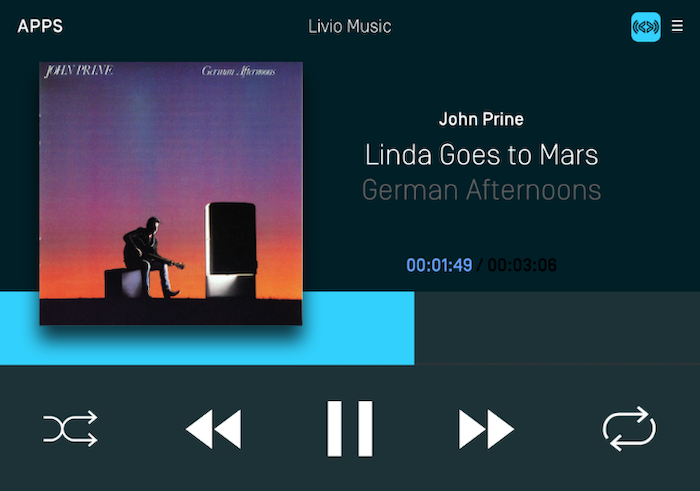
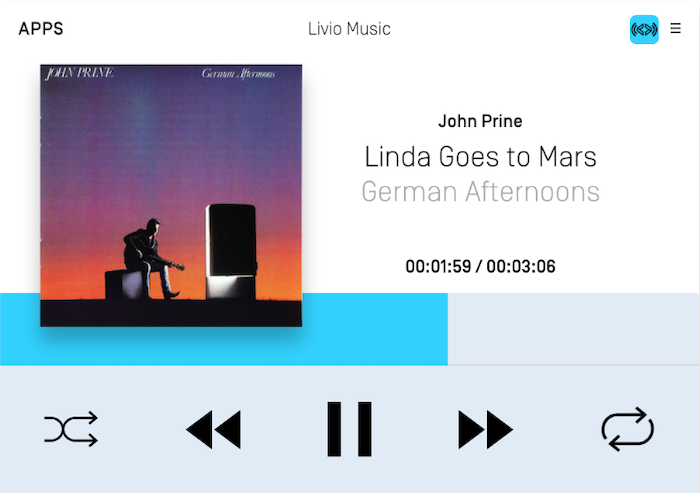
Templated images are tinted by Core so the image is visible regardless of whether your user has set the head unit to day or night mode. For example, if a head unit is in night mode with a dark theme (see Customizing the Template section for more details on how to customize theme colors), then your templated images will be displayed as white. In the day theme, the image will automatically change to black.
Soft buttons, menu icons, and primary / secondary graphics can all be templated. A template image works very much like it does on iOS and in fact, it uses the same API as iOS. Any SDLArtwork created with a UIImage that has a renderingMode of alwaysTemplate will be templated via SDL as well. Images that you wish to template must be PNGs with a transparent background and only one color for the icon. Therefore, templating is only useful for things like icons and not for images that must be rendered in a specific color.
Templated Images Example
In the screenshots below, the shuffle and repeat icons have been templated. In night mode, the icons are tinted white and in day mode the icons are tinted black.
Night Mode
Day Mode
Objective-C
UIImage *image = [[UIImage imageNamed:@"<#ArtworkName#>"] imageWithRenderingMode:UIImageRenderingModeAlwaysTemplate];
SDLArtwork *artwork = [SDLArtwork artworkWithImage:image asImageFormat:SDLArtworkImageFormatPNG];
Swift
let image = UIImage(named: "<#ArtworkName#>")?.withRenderingMode(.alwaysTemplate)
let artwork = SDLArtwork(image: image, persistent: true, as: .PNG)
Static Icons
Static icons are pre-existing images on the remote system that you may reference and use in your own application. Each OEM will design their own custom static icons but you can get an overview of the available icons from the icons designed for the open source Generic HMI. Static icons are fully supported by the screen manager via an SDLArtwork initializer. Static icons can be used in primary and secondary graphic fields, soft button image fields, and menu icon fields.
Objective-C
SDLArtwork *staticIconArt = [[SDLArtwork alloc] initWithStaticIcon:SDLStaticIconNameAlbum];
Swift
let staticIconArt = SDLArtwork(staticIcon: .album)