

Customizing the Template
You have the ability to customize the look and feel of the template. How much customization is available depends on the RPC version of the head unit you are connected with as well as the design of the HMI.
Customizing Template Colors (RPC v5.0+)
You can customize the color scheme of your app using template coloring APIs.
Customizing the Default Layout
You can change the template colors of the initial template layout in the lifecycleConfiguration.
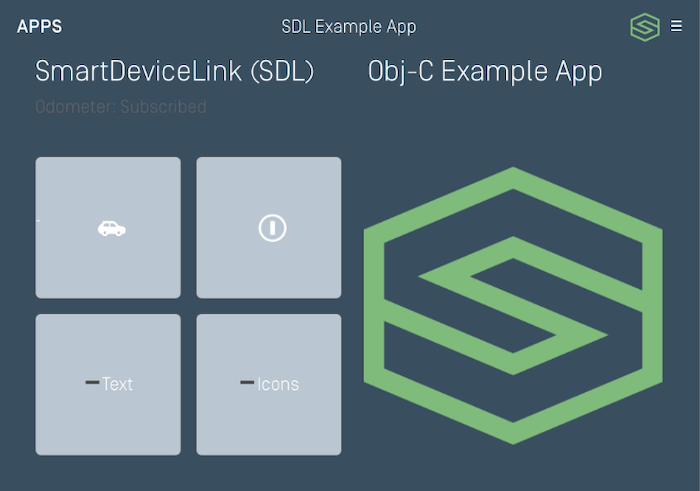
// Set color schemes
RGBColor green = new RGBColor(126, 188, 121);
RGBColor white = new RGBColor(249, 251, 254);
RGBColor grey = new RGBColor(186, 198, 210);
RGBColor darkGrey = new RGBColor(57, 78, 96);

TemplateColorScheme dayColorScheme = new TemplateColorScheme();
dayColorScheme.setBackgroundColor(white);
dayColorScheme.setPrimaryColor(green);
dayColorScheme.setSecondaryColor(grey);
builder.setDayColorScheme(dayColorScheme);

TemplateColorScheme nightColorScheme = new TemplateColorScheme();
nightColorScheme.setBackgroundColor(white);
nightColorScheme.setPrimaryColor(green);
nightColorScheme.setSecondaryColor(darkGrey);
builder.setDayColorScheme(nightColorScheme);

Note
You may change the template coloring in the lifecycleConfiguration and the SetDisplayLayout, if connecting to a head unit with RPC v5.0+, or with the Show request if connecting to RPC v6.0+. You may only change the template coloring once per template; that is, you cannot call SetDisplayLayout or Show for the template you are already on and expect the color scheme to update.
Customizing Future Layouts
You can change the template color scheme when you change layouts in the SetDisplayLayout (any RPC version) or Show (RPC v6.0+) request.
// Set color schemes
RGBColor green = new RGBColor(126, 188, 121);
RGBColor white = new RGBColor(249, 251, 254);
RGBColor grey = new RGBColor(186, 198, 210);
RGBColor darkGrey = new RGBColor(57, 78, 96);

TemplateColorScheme dayColorScheme = new TemplateColorScheme();
dayColorScheme.setBackgroundColor(white);
dayColorScheme.setPrimaryColor(green);
dayColorScheme.setSecondaryColor(grey);
builder.setDayColorScheme(dayColorScheme);

TemplateColorScheme nightColorScheme = new TemplateColorScheme();
nightColorScheme.setBackgroundColor(white);
nightColorScheme.setPrimaryColor(green);
nightColorScheme.setSecondaryColor(darkGrey);

SetDisplayLayout setDisplayLayout = new SetDisplayLayout(PredefinedLayout.GRAPHIC_WITH_TEXT.toString());
setDisplayLayout.setDayColorScheme(dayColorScheme);
setDisplayLayout.setNightColorScheme(nightColorScheme);
setDisplayLayout.setOnRPCResponseListener(new OnRPCResponseListener() {
    @Override
    public void onResponse(int correlationId, RPCResponse response) {
        if (response.getSuccess()){
            // Success
        }
    }

    @Override
    public void onError(int correlationId, Result resultCode, String info){
        // Handle error
    }
});
sdlManager.sendRPC(setDisplayLayout);
Customizing the Menu Title and Icon
You can also customize the title and icon of the main menu button that appears on your template layouts. The menu icon must first be uploaded with a specific name through the file manager; see the Uploading Images section for more information on how to upload your image.
SetGlobalProperties setGlobalProperties = new SetGlobalProperties();
setGlobalProperties.setMenuTitle("customTitle");
// The image must be uploaded before referencing the image name here
setGlobalProperties.setMenuIcon(<#Image#>);
setGlobalProperties.setOnRPCResponseListener(new OnRPCResponseListener() {
    @Override
    public void onResponse(int correlationId, RPCResponse response) {
        if (response.getSuccess()){
            // Success
        }
    }

    @Override
    public void onError(int correlationId, Result resultCode, String info){
        // Handle error
    }
});
sdlManager.sendRPC(setGlobalProperties);